Admin Portal
Admin Portal
Console pages: an organization's page in an environment console (Admin Portal link), and Invite your IT admin on Enterprise SSO and Directory Sync in an organization's console
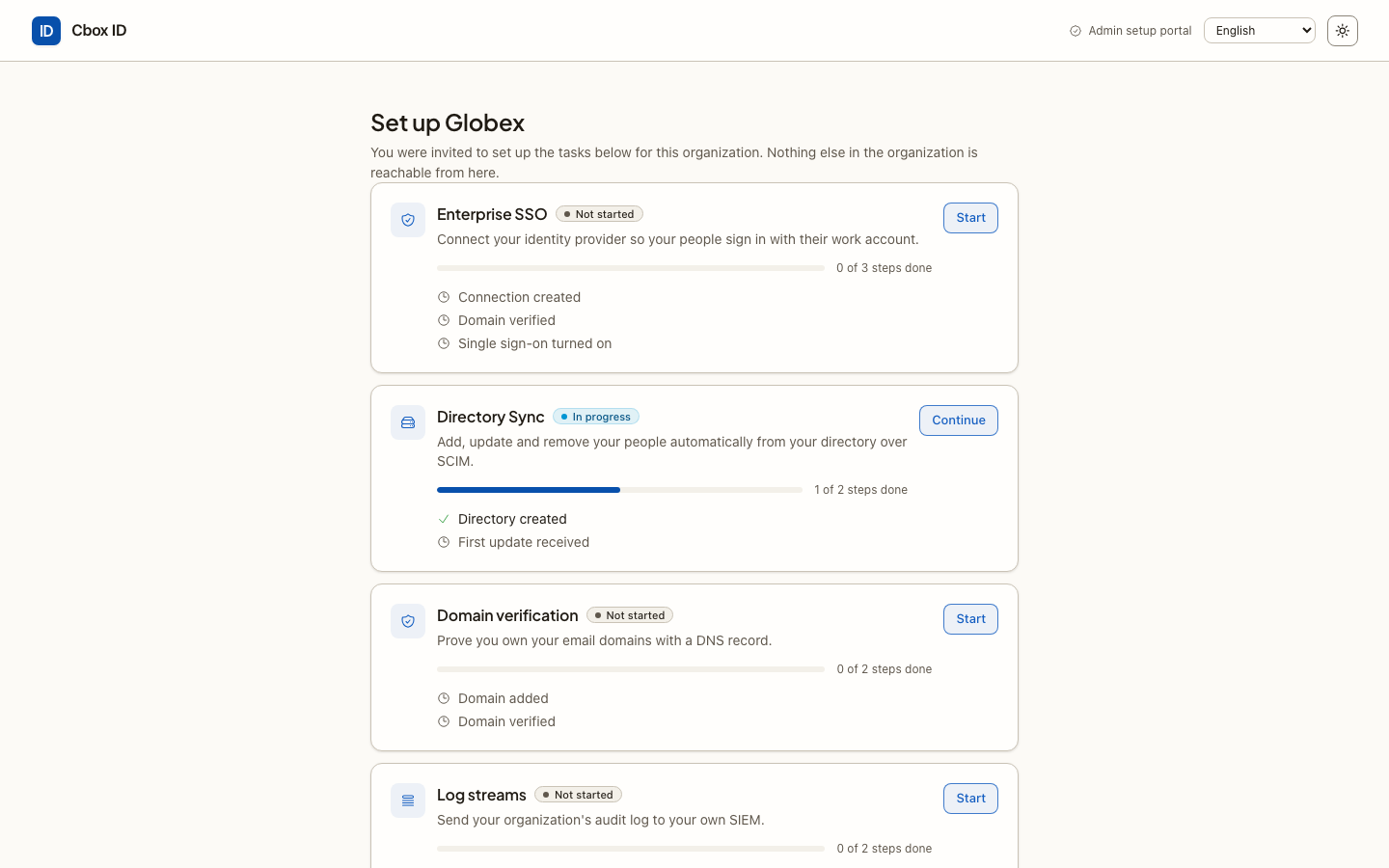
The person who can connect a company's identity provider is rarely the person who signed the company up for your product. The Admin Portal lets you hand that part to them: you create a portal link, send it to their IT admin, and they set up what the link covers on hosted pages, in their own language, without an account here.
What they see is written for them, in For your customers' IT admins. Send them that link along with the portal link if they want to read up first.
What a link can open: intents
Each link carries one or more intents. The IT admin sees one card per intent and can do nothing else in the organization.
| Intent | Shown as | What the IT admin can do | Plan must include |
|---|---|---|---|
sso |
Enterprise SSO | Connect their identity provider over SAML or OpenID Connect, guided per provider; verify the email domains that route to it; turn it on | Enterprise SSO |
dsync |
Directory Sync | Create a SCIM directory, copy its base URL and bearer token into their provider, issue a new token | Directory Sync |
domain_verification |
Domain verification | Add email domains, publish the DNS TXT record, check it, remove a domain | — |
log_streams |
Log streams | Send the organization's Audit log to their own SIEM, send a test entry, remove a destination | — |
certificate_renewal |
SAML certificate renewal | Upload their identity provider's new signing certificate, then make it the active one | Enterprise SSO |
audit_logs |
Audit logs (read-only) | Read the App audit logs events your app sent about their organization, filter them, export a CSV | App audit logs |
A link for an intent the organization's plan does not include is refused
(403 not_entitled), and the console shows that intent disabled with the reason. The plan
is checked again when the link is opened and on every page after that, so an intent the
plan stops including disappears from an open session at once.
What each intent may not do is as important. A portal session cannot turn on domain capture, change the Authentication policy (for example, require SSO), pause or delete a directory, disable a log stream, delete an SSO connection, or reach members, roles or apps. Those stay with you.
Create a link
From an organization's page in the environment console, choose Admin Portal link:
- Under What it opens, tick the intents.
- Choose how long the link may wait to be opened under Link expires after: 30 minutes, 4 hours, 24 hours, 3 days or 7 days.
- Optionally fill in Email it to with their IT contact's address and pick the Email language. Leave it blank to copy the link yourself.
- Create link (or Create and send link). The link is shown once; copy it now.
From an organization's own console, Invite your IT admin on the Enterprise SSO page
creates a link for sso, and on the Directory Sync page one for dsync, with the
default lifetime.
From code, call organizations.portal_links.create: POST /api/v1/organizations/{organization_id}/portal-links, scope portal_links:write,
danger critical. The same action is an MCP tool (organizations_portal_links_create) and
a CLI command.
curl -X POST https://<environment-host>/api/v1/organizations/$ORG/portal-links \
  -H "Authorization: Bearer $CBOX_ID_KEY" \
  -H "Content-Type: application/json" \
  -H "Idempotency-Key: $(uuidgen)" \
  -d '{"intents":["sso","domain_verification"],"expires_in_minutes":1440,"email":"[email protected]","locale":"da"}'
| Field | |
|---|---|
intents |
One or more of the values above. Required. |
expires_in_minutes |
How long the link may wait to be opened: 5 to 10080 (a week). Left out, the deployment's default, 30 (CBOX_ID_PORTAL_TTL_MINUTES). |
email |
Mail the link to this address. Left out, nothing is sent. |
locale |
The mail's language: en, da, de, sv, nb or fr. Left out, the environment's default language. |
The answer (201) carries id, organization_id, intents, url, expires_at and
emailed_to. The url is in that answer only: only a hash of the link is stored, and an
idempotent replay returns everything but the URL. Because creating a link is critical, a
key with an approval policy may wait for a person first
(step-up approvals).
How long a link lasts
- Opening it does not spend it. The link opens a page with an Open setup button; only that button redeems it. A mail scanner or a chat preview that fetches the URL does not burn it.
- It works once. Redeeming it starts a portal session and the link cannot be opened again. Anyone who opens it later sees "This setup link is no longer valid".
- The session lasts 120 minutes from that moment (
CBOX_ID_PORTAL_SESSION_MINUTES). The IT admin can come back to the checklist any time inside it. - Finishing ends it. Finish setup (or Done on a read-only audit logs link) closes the session and the link for good.
- You can revoke it. Revoking a link means it can no longer be opened, and somebody in the middle of setup lands on the "no longer valid" page at their next click. What they already configured stays configured. Still choose the shortest lifetime that works, and send the link only to the person who will use it.
If a link expired or was used, create a new one.
Seeing and revoking links
An organization's Overview in the environment console lists its outstanding Admin Portal links in an Admin Portal links panel, each with a Revoke button. Over the API:
| Action | Route | Scope | Danger |
|---|---|---|---|
organizations.portal_links.list |
GET /api/v1/organizations/{organization_id}/portal-links |
portal_links:read |
read |
organizations.portal_links.revoke |
DELETE /api/v1/organizations/{organization_id}/portal-links/{id} |
portal_links:write |
destructive |
The list covers the last 30 days and never includes the URL itself. Each link has a status:
| Status | Means |
|---|---|
pending |
created, not opened yet |
in_use |
redeemed; a portal session is running |
completed |
the IT admin chose Finish setup (or Done) |
expired |
its lifetime or its session ran out |
revoked |
withdrawn; recorded on the Audit log as portal_link.revoked |
What the IT admin sees
A checklist titled Set up organization, one card per intent with its progress ("Not started", "In progress", "Done") and the steps behind it. Each card opens a guided page:
- Enterprise SSO — five steps: choose the identity provider (one of twenty, from Okta, Microsoft Entra ID and Google Workspace to AD FS, Keycloak and Cloudflare Access, or generic SAML 2.0 or OpenID Connect — the list); start the connection, which shows the exact values to paste into the provider, each labelled with that provider's own field name; bring back the provider's metadata or its issuer and client credentials; verify a domain; Turn on single sign-on.
- Directory Sync — choose the directory, Create directory, copy the SCIM base URL and the Bearer token (shown once) into the provider, with steps for Okta, Microsoft Entra ID, OneLogin, JumpCloud, PingFederate, PingOne, Duo, CyberArk Identity, Oracle Cloud Infrastructure IAM or any SCIM 2.0 client.
- Domain verification — add a domain, publish the TXT record, Check DNS.
- Log streams — add a destination, Send test entry, remove one.
- SAML certificate renewal — each SAML connection's certificates with their expiry, upload the new one, Activate it once the provider signs with it.
- Audit logs — a read-only list with filters and Export CSV (the newest 50,000
matching events,
CBOX_ID_AUDIT_LOGS_PORTAL_EXPORT_LIMIT).
The page-by-page walkthroughs, with the field names, are in For your customers' IT admins.
Two details of the Enterprise SSO page worth knowing:
- SAML: besides the ACS URL and entity ID, the page shows a copyable Service provider
metadata URL (
/sso/saml/{connection}/metadata) for a provider that imports service-provider metadata — PingFederate by URL, Microsoft Entra ID by uploading the downloaded file, AD FS as the federation metadata address. It works as soon as the draft connection exists. - OpenID Connect: the issuer URL, client ID and client secret are enough. The
provider's signing keys are read from its
jwks_uriand its rotations followed on their own; Signing key (optional) is only for a provider that publishes nojwks_uri, and takes an RS256 public key in PEM form. HS256 (a shared-secret signature) is not supported.
Languages
The portal pages are shown in English, Danish, German, Swedish, Norwegian Bokmål or French.
The language follows the visitor's choice in the language menu, then their browser, then the
environment's default; see Languages. The mail with the link is in the
locale you chose, or the environment's default. Field names on an identity provider's
screens ("Audience URI (SP Entity ID)") are left untranslated, because that is what the IT
admin will find there.
How it is audited
- Creating a link is recorded as
portal_link.created, naming who created it (the person in the console, or the key) and the address it was mailed to. - Every change made in the portal runs as the same action
the console uses, recorded with Via: Admin Portal, the link's id
(
portal_link_id) and who created the link (portal_link_created_by). The actor is the system, named by the link, because the IT admin has no account. - Finishing is recorded as
portal_link.completed. - Exporting audit logs is recorded as
audit_log_export.downloaded.
Filter the Audit log by Via: Admin Portal to see everything that came through portal links.
Safety
- The link is the whole credential. Treat it like a password until it is used.
- The organization comes from the server-side portal session, never from the request, so a link cannot reach another organization.
- A portal session never counts as signed in to the console.
- Each intent allows only its own actions: a Directory Sync link cannot add a domain, however the request is formed.
Related
- For your customers' IT admins — what the person you send the link to reads.
- Enterprise SSO and Directory Sync — the same setup, done yourself.
- Log streams and App audit logs — the other things a link can open.
- Enterprise self-serve — how the portal, entitlements and SSO fit together.
- Languages — which language the portal is shown in.