Enterprise SSO
Enterprise SSO
Console page: Sign-in › Enterprise SSO (Authentication › Enterprise SSO in an environment console), and Sign-in › Domains for the verified email domains that route people to it
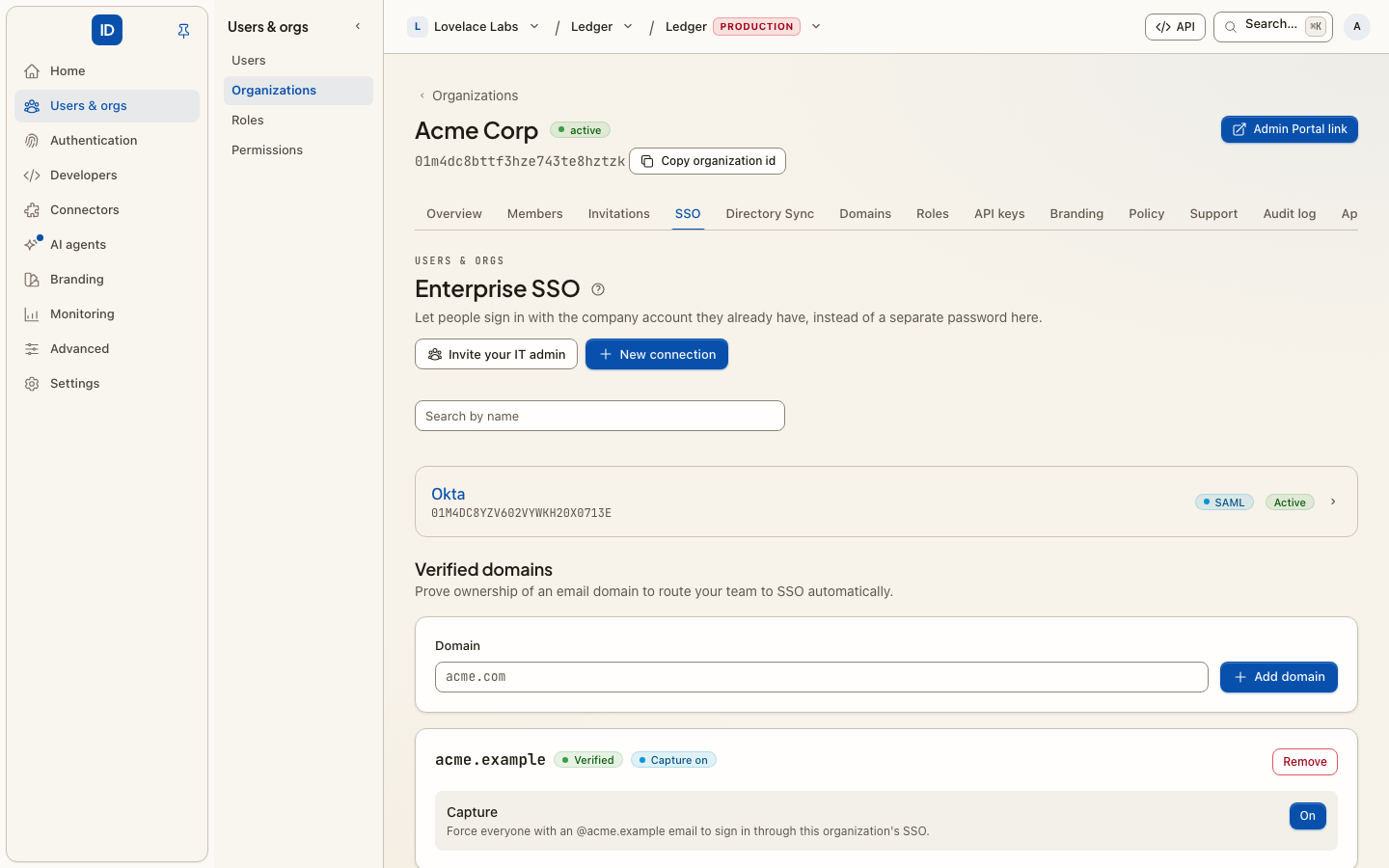
Enterprise SSO lets your people authenticate against the identity provider your company already runs, instead of holding a second set of credentials here. You connect the provider once and claim the email domains you own; from then on, anyone whose address is on those domains is sent to your provider to sign in, and access here follows what your provider says.
The practical payoff is offboarding: disable someone in your provider and they stop being able to sign in here — and to everything connected to here — without anyone remembering to do a second thing.
Both SAML 2.0 and OpenID Connect are supported; use whichever your provider makes easiest.
Before you start
- You need admin rights in the identity provider, or someone who has them. If that is a different person, use Invite your IT admin on the page: it creates a single-use Admin Portal link that works without a Cbox ID account and expires soon. Copy it when it is shown; it is shown only once. What that person then sees is in Enterprise SSO, for IT admins.
- Enterprise SSO is an Enterprise feature. If the page says so instead of showing the connections, the organization's plan does not include it yet.
- Have a test account ready that you can sign in with, but that is not your only way into the console.
Connect a provider with SAML
- In your identity provider, create an application for Cbox ID.
- In the console, choose New connection, give it a Name, and pick SAML as the Protocol.
- Paste your provider's metadata XML, or its metadata URL, into Import from metadata. The IdP entity ID, IdP sign-on URL and IdP signing certificate are filled in for you. This is the step people most often get wrong by hand.
- Leave Service provider entity ID and Assertion consumer service URL empty
unless you have a reason not to: the connection then gets its own. Once it exists,
its exact ACS URL is shown on the connection; copy that back into your provider. A
provider that imports service-provider metadata (PingFederate, AD FS, Entra's
Upload metadata file) can take the connection's SP metadata URL instead —
/sso/saml/{connection}/metadata, shown with a copy button on the connection's page and returned asservice_provider.sp_metadata_urlby the API. It works on a draft, before the provider's half is filled in. - Save. The connection is created as a draft — it is not used for anyone yet.
- Test a sign-in, then Activate it.
Connect a provider with OIDC
- Register a confidential client in your provider and note its client ID and secret.
- Choose New connection, pick OpenID Connect as the Protocol, and enter the Issuer, Client ID and Client secret.
- Cbox ID reads the provider's OpenID configuration from the issuer and fills in
the endpoints. If that fails, the issuer URL is wrong or unreachable — it is the
base URL, not the
.well-knownpath. ID tokens are verified against the signing keys the configuration publishes at itsjwks_uri, and a key rotation at the provider is picked up on its own. The signing key field is optional: paste the provider's RS256 public key (PEM) there only if its configuration publishes nojwks_uri— the save tells you when that is the case. - Save, test, Activate.
Verify your domains
Console page: Sign-in › Domains (the Enterprise SSO page lists them too)
A connection on its own does not route anybody. Verified domains are what let Cbox
ID recognise [email protected] as yours and send that person to your provider.
- Add the domain, for example
acme.com. - Publish the TXT record shown at the host given. The values are displayed once, right after you add the domain.
- Click verify. DNS can take a while to propagate; re-check rather than re-adding.
- Optionally, turn on Capture for the domain. Sign-in already routes people on a verified domain to an active connection; capture also stops anyone on the domain from signing up with a password of their own here, and sends them to your provider instead.
The TXT record's name is _cbox-id-challenge.<your domain>, and its value is a random
token generated for that domain.
A domain can only be claimed by one organization — if verification is refused because it is already claimed, that is why. Verify every domain your people have addresses on before you rely on Enterprise SSO.
These are email domains. Serving the sign-in pages themselves on your own address, such
as login.example.com, is a different feature: custom domains.
Choose how far it goes
Claiming a domain decides who Cbox ID RECOGNISES. It does not, on its own, decide whether those people may still use a password. That is the Enterprise SSO setting on Authentication policy, and the three values differ:
| Setting | What somebody on a verified domain sees |
|---|---|
| Require SSO — every other way in is refused | Sent straight to your provider. There is no password form to fall back to, and an old credential cannot bypass the provider you mandated. |
| Prefer SSO, passwords still work | "Continue with single sign-on" first, with the password form beneath it. |
| Passwords and SSO both available | The password form, with the connection offered underneath. |
If you want SSO to be the only way in, choose Require SSO. Until recently a verified domain routed to the provider whatever this was set to, so an organization that had left it at Passwords and SSO both available was enforced anyway. That was wrong in both directions: it ignored the setting, and it locked out anybody who had enrolled a passkey, because there was no local form to reach it from. Microsoft warns against exactly this pattern for the same reason.
If your organization was relying on that implicit behaviour, set Require SSO — the setting now means what it says.
Renewing a SAML certificate
Identity providers rotate their signing certificates. A SAML connection trusts its current certificate and any staged beside it, so a renewal has no outage:
- Stage the new certificate, from PEM or from your provider's metadata. It is checked before it is trusted.
- Switch your provider over to the new certificate.
- Activate the staged certificate. The old one is retired.
A daily scan warns when an active connection's certificates stop working within 30 days
and again within 7: a connection.certificate_expiring webhook, an audit
log entry, an email to the organization's owners and admins, and a warning on the
Enterprise SSO page. An IT admin can do the renewal through an Admin Portal link that
covers certificate renewal.
From code
Every step is an action, on the management API, MCP and the CLI alike. The ones you will use most:
| Action | REST | Scope | Danger |
|---|---|---|---|
sso.connections.list, sso.connections.get |
GET /api/v1/sso/connections, …/{id} |
sso:read |
read |
sso.connections.create |
POST /api/v1/sso/connections |
sso:write |
write |
sso.saml_metadata.import |
POST /api/v1/sso/saml-metadata |
sso:write |
write |
sso.connections.update |
PATCH /api/v1/sso/connections/{id} |
sso:write |
critical |
sso.connections.activate, sso.connections.disable |
POST /api/v1/sso/connections/{id}/activate, …/disable |
sso:write |
critical |
sso.connections.require_sso |
POST /api/v1/sso/connections/{id}/require-sso |
sso:write |
critical |
sso.connections.certificates.stage, …activate |
POST /api/v1/sso/connections/{id}/certificates, …/certificates/activate |
sso:write |
critical |
sso.domains.create, sso.domains.verify |
POST /api/v1/sso/domains, …/{id}/verify |
sso:write |
write |
sso.domains.capture |
POST /api/v1/sso/domains/{id}/capture |
sso:write |
critical |
sso.connections.delete, sso.domains.delete |
DELETE …/{id} |
sso:write |
critical, destructive |
sso.connections.create with "pending_idp": true creates the draft before you know the
provider's details. Its answer's service_provider holds what to paste into the
provider; complete the connection with sso.connections.update afterwards.
sso.connections.require_sso ends every password session in the organization. Every
action here is listed in the reference.
Troubleshooting
"Couldn't read the provider's OpenID configuration" — the issuer URL is wrong, or the host is not reachable from the platform. Check it resolves publicly.
Sign-in loops back to the Cbox ID login form — the connection is still a draft. Activate it.
People are not being sent to the provider — their email domain is not verified, or their address is on a domain you have not claimed.
The provider rejects the request — the SP entity ID or ACS URL in your provider does not match the connection exactly, character for character.
Related
- Directory Sync — SSO authenticates people; Directory Sync creates and deactivates them. Most organizations want both.
- Admin Portal — hand the setup to the customer's own IT admin.
- Enterprise SSO, for IT admins — what that IT admin is shown, with guides per provider.
- Social login — individual accounts people already have elsewhere.
- Custom domains — the sign-in pages on your own address.
- Roles — what those people can do once they are in.
- SAML apps — the opposite direction: applications that trust this environment.