Members and invitations
Members and invitations
Console page: Members & roles › Members
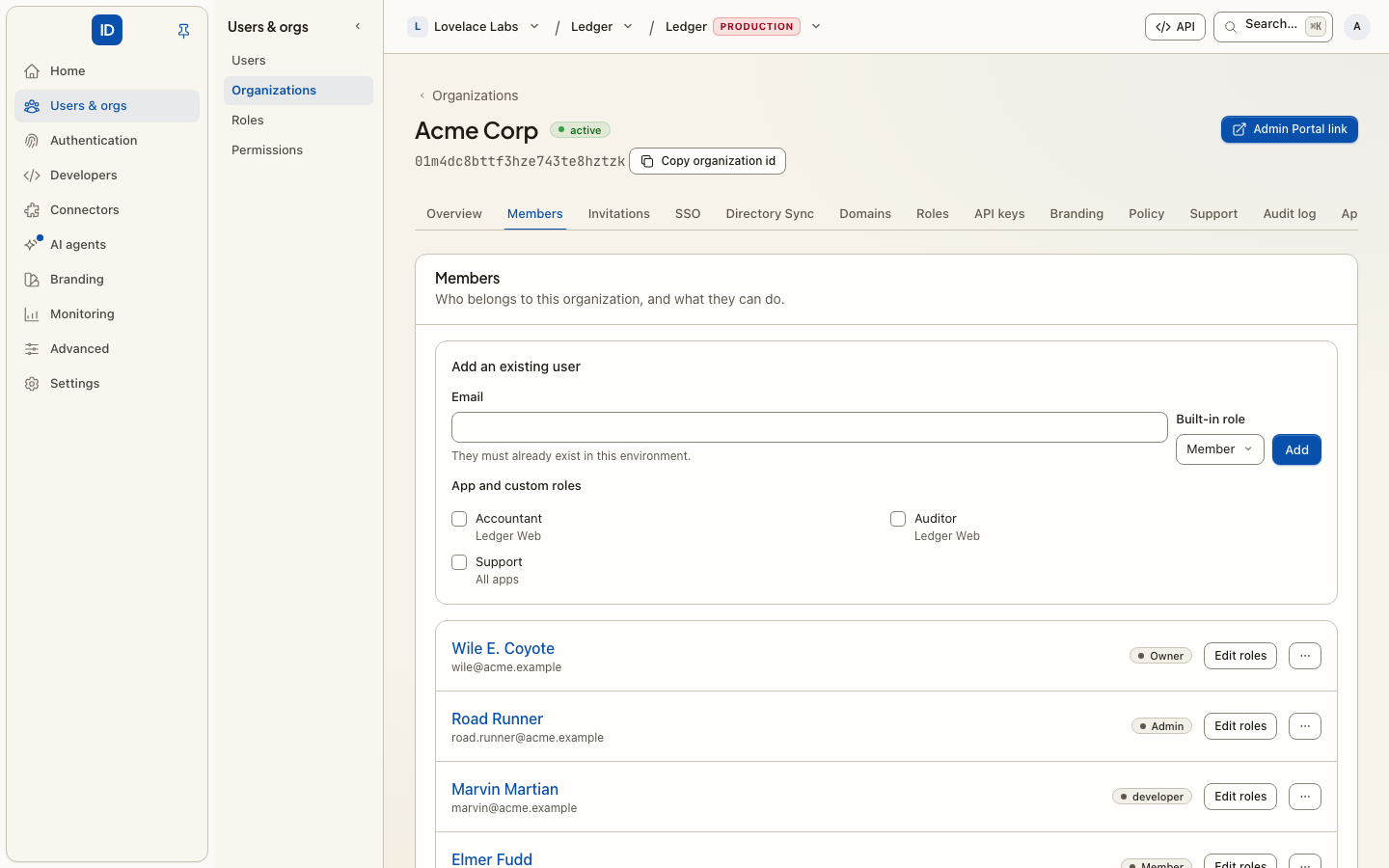
Everyone who can sign in to this organization, what they may administer here, and the invitations nobody has accepted yet. The same invite form and the same pending list appear on the environment console's view of an organization (Organizations › name), and a workspace's own team uses the same form under Workspace › Team.
Inviting someone
Invite member asks for an email address and Roles:
- Email address. They get a mail from the organization, naming who invited them.
- Roles — one control that holds two kinds of role:
- exactly one built-in role, which decides what they may administer in this console. Admin manages people, apps, roles and settings; Member signs in to the organization's apps and nothing more. There is no "Owner" choice: an organization has one owner, and ownership is transferred, never handed out from a list.
- any number of roles your apps understand, app-declared or your own, granted the moment they accept, so there is no second step after they join.
On a workspace's Team page the built-in roles are Admin, Developer, Member and Viewer. Developer may administer environments and create management keys but not the team; Viewer can read the team and billing and change nothing.
A team invitation is a different kind from an organization's: the mail says "invited you
to administer", and its link asks the person to set a password, then signs them in
to this console. Your backend can send the same invitation with a workspace key —
POST /api/v1/workspace/members — and list, re-send and withdraw it under
/api/v1/workspace/invitations. It is the same invitation either way: the same mail
and link, the same refusals, and the same line on the audit log
(organization.member_invited, organization.invitation_revoked), signed by the key's
name instead of a person's.
Nobody is added until they accept. The link in the mail opens a page that says which organization, who invited them, the role and the address it was sent to; accepting is a button on that page, never the link itself. Mail scanners (Outlook Safe Links and the like) open every link in a message before a person does — a link that joined on opening was joined by the scanner.
The link is good for 7 days.
Sending them back to your app
By default a new member lands in this console. When the invitation comes from your app,
open Send them to an app afterwards…, pick the app, and give a return address —
a page in that app, such as https://app.example.com/welcome.
The return address has to be on one of the origins (scheme, host and port) the app
registered as a redirect URI. https://app.example.com/auth/callback registered means
any page on https://app.example.com is allowed; another host, another port or plain
http (except on localhost) is refused when you send, with the reason next to the
field. It is checked again when the invitation is accepted: if the app's redirect URIs
changed in the meantime and the address is no longer covered, the person still joins
and lands in the console instead.
Choosing an app without a return address still names the app on the invitation.
Accepting also switches the person into this organization. When the app then signs them in, it gets this organization — even someone who already belonged to others, and even if the app does not ask for one. See Organizations in your app.
Invited, not joined yet
Each pending invitation shows who sent it, when it expires and which app it is for.
- Send again mails a fresh link (at most once a minute per address). The old link stops working; the roles and return address carry over.
- Withdraw kills the link and drops the roles it was carrying.
Handing the organization over
The owner can make any other member the owner: open the ⋯ menu on their row and choose Transfer ownership, then type their address to confirm. They become the owner and you become an admin. Only the new owner can hand it back. The new owner must be an active member. Someone who has not accepted their invitation yet, or is suspended, cannot take it over.
An environment administrator does the same from the organization's page with Make owner. That also gives an organization created from the environment console (which starts without an owner) its first one; any current owner becomes an admin.
Leaving
Anyone can leave with Leave on their own row. The last owner cannot: transfer ownership first, or delete the organization. If you belong to another organization here you are moved to it; otherwise you are signed out.
Deleting the organization
The owner can delete the organization under Settings › Delete organization, after typing its name and confirming their password. Every member loses access at once and it disappears from every list; the records are kept for the audit trail. Apps that signed members in to it can no longer refresh their tokens. Apps registered for back-channel logout are told to sign those members out. A workspace (an organization that owns projects) cannot be deleted this way: close its projects under Workspace › Projects first.
Related
- Roles — what to give people once they are in.
- Enterprise SSO — people arriving with the company account they already have.
- Directory Sync — let the company's directory add and remove members for you.
- Audit log — every invitation, removal and ownership transfer, recorded.