Screens
Screens
A tour of the Cbox ID app: the consoles and the sign-in surface. It follows the
console's own structure, with areas declared once in
ConsoleArea
and rendered by the same components on every console.
The screenshots are of a seeded demo environment (the "Lovelace Labs" workspace and its
"Ledger" product), taken in the light theme at 1440×900 by
vendor/bin/pest --group=docs-screenshots; see Screenshots to
regenerate them. Most of them show an environment console, where the organization
pages appear as tabs of each organization. There is no screenshot of the Platform areas.
Three consoles, one shell
The same shell serves three kinds of administrator. Which one you get depends on where you signed in and what you administer:
| Console | Where | Who it is for |
|---|---|---|
| Workspace console | The platform root host of a hosted deployment | Your own Cbox workspace: projects, team, keys, billing |
| Organization console | A customer's environment host, or a single-tenant install | One organization: on a customer's host an admin portal (members, SSO, directory sync, roles, audit log); on a single-tenant install everything, apps included |
| Environment console | /admin on an environment's own host |
One environment: every organization in it, their users, and the product's apps, hooks and settings |
On a hosted deployment the two are deliberately different. A customer's administrator gets an admin portal and their own pages; the product's administration (apps, webhooks, the token vault and the rest) is the environment console's alone, and its URLs answer 404 on the customer's console. On a single-tenant install there is no environment console, so the organization console keeps every page. Workspaces & organizations explains the difference between a workspace and an organization, and lists what a customer's console keeps.
A page offered by both consoles has one URL; the environment console's is that path
under /admin (/roles and /admin/roles). Old paths answer with a 301, so a bookmark
still works. Upgrading
lists them.
The deployment's own pages (workspaces, environments, organizations, operators) are platform admin: reached from Platform admin in the account menu by whoever has authority over the deployment, with a rail of their own and a strip across the top that says so. They are no longer appended to every rail.
The rail
The rail shows each area's icon and its label, by default. The pin at the top
collapses it to a strip of icons (hover it and an overlay opens with the labels); the
choice is remembered in this browser. Below the lg breakpoint it becomes a sheet behind
the menu button in the bottom bar.
The topbar
Where you are on the left, search and your account on the right:
Acme ▾ / Checkout ▾ / Production ▾ [PRODUCTION] / All organizations ▾ Go to… ⌘K (avatar)
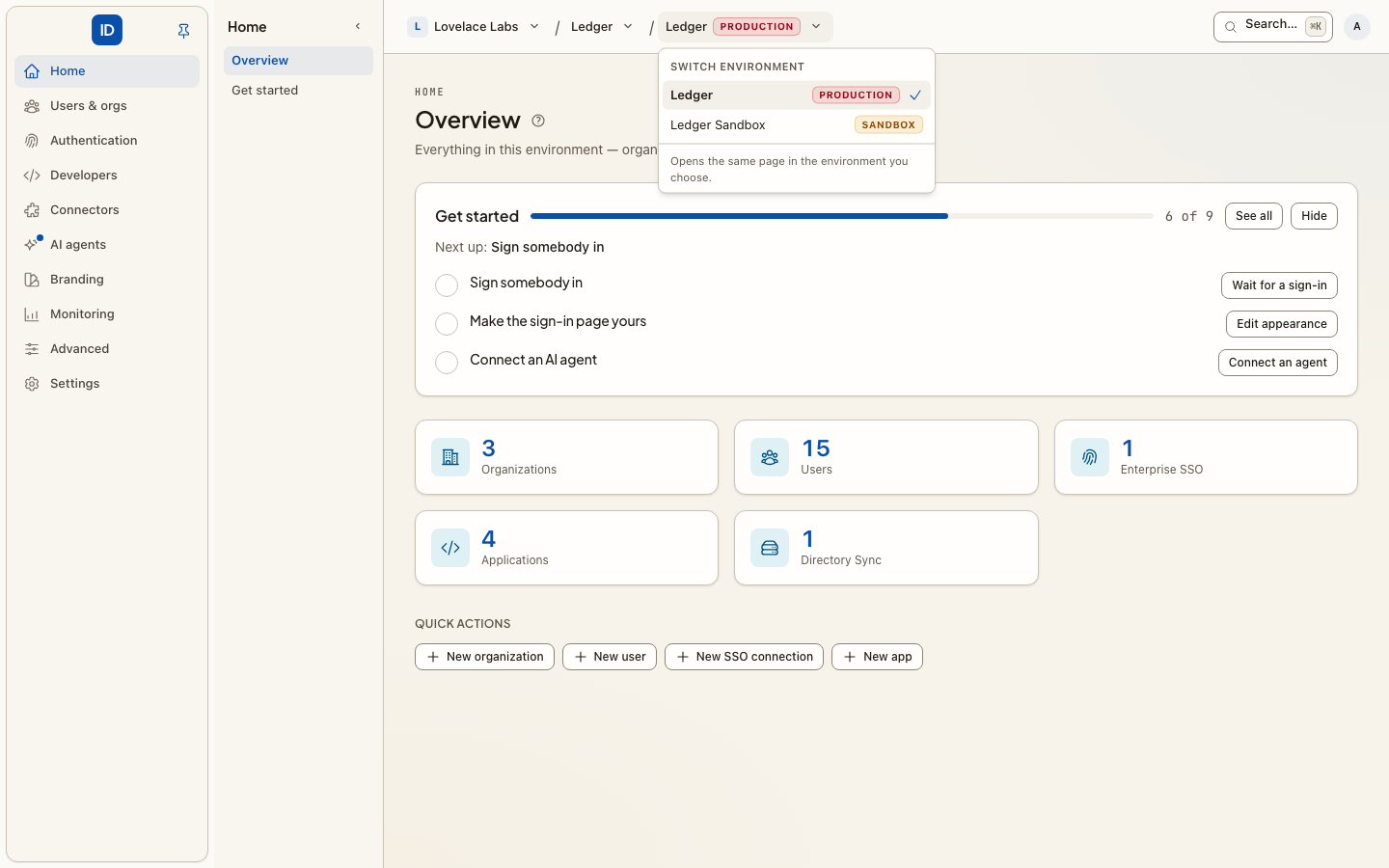
- Workspace ▾ / Project ▾ / Environment ▾ is one context switcher, the same on every console. Choosing another environment opens the same page there. The badge names the environment's type in words. On the workspace console no environment is current, so the second crumb is Environments ▾, every environment you may open grouped by project. Workspaces & organizations describes each menu.
- All organizations ▾ (environment console only) filters every page to one of your customers.
- The avatar opens the account menu: Workspace settings, My account, Switch user, Platform admin (operators), Theme, Sign out.
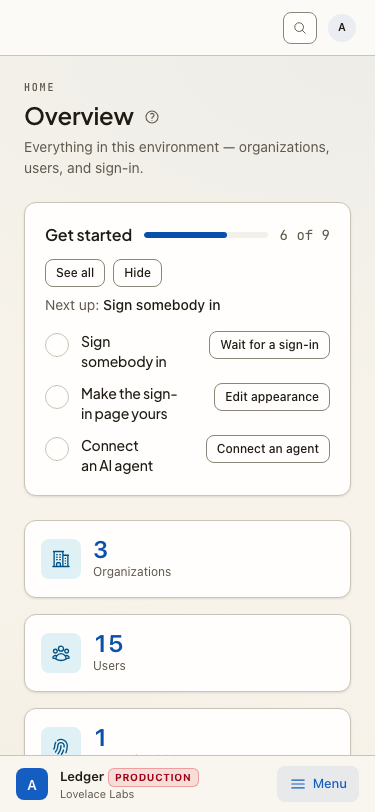
On a phone the context switcher moves into the navigation sheet, and the bottom bar names the environment and its type.
Every page has a "?" beside its title with a short explanation, and a Read the guide link to the admin guides where there is one.
Sign-in surface
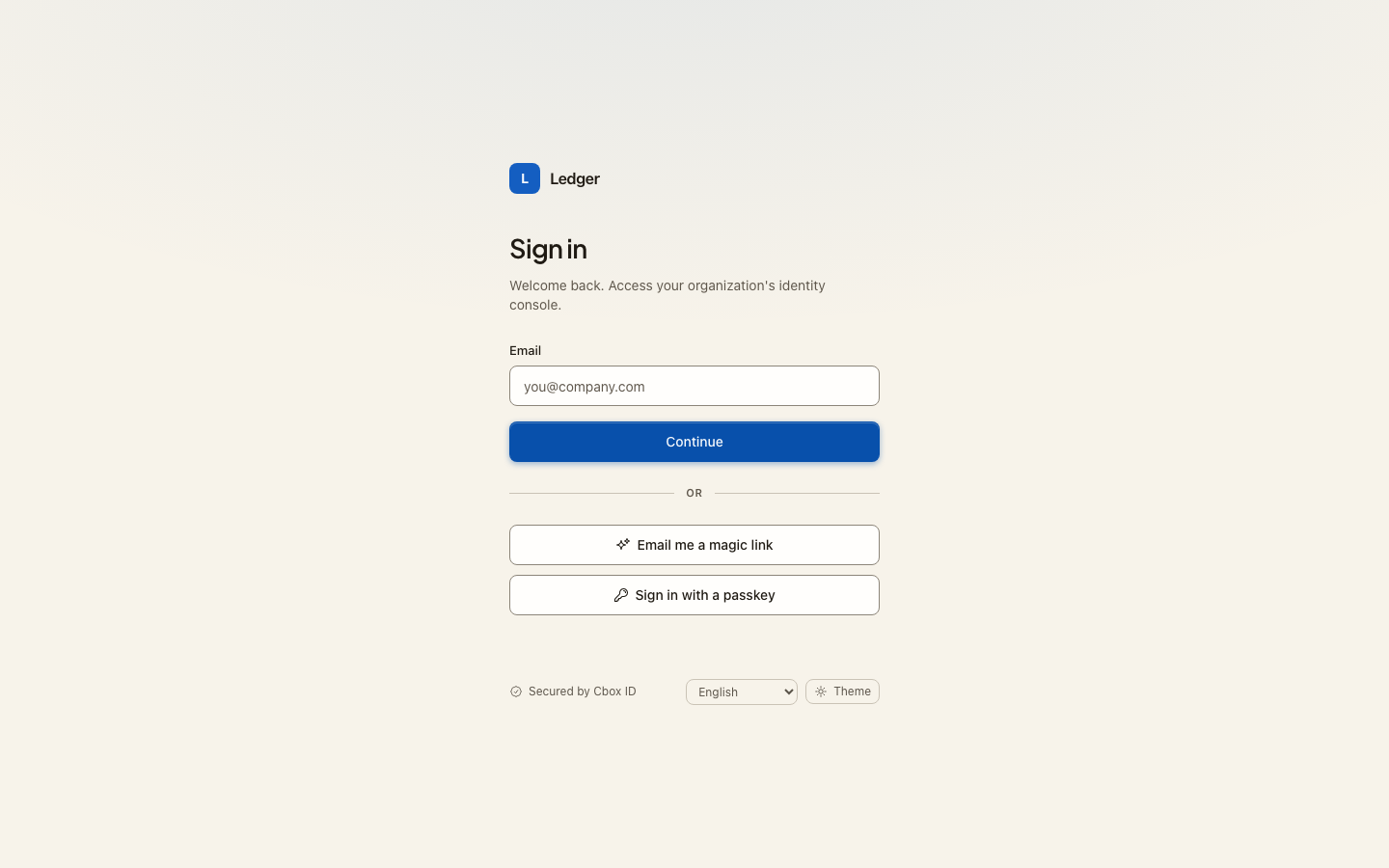
Login
Password sign-in, plus passwordless options: email magic link and passkey
(WebAuthn) sign-in. Social buttons appear when a provider is configured. Organizations
get a branded variant at /o/{slug}/login.
Signup
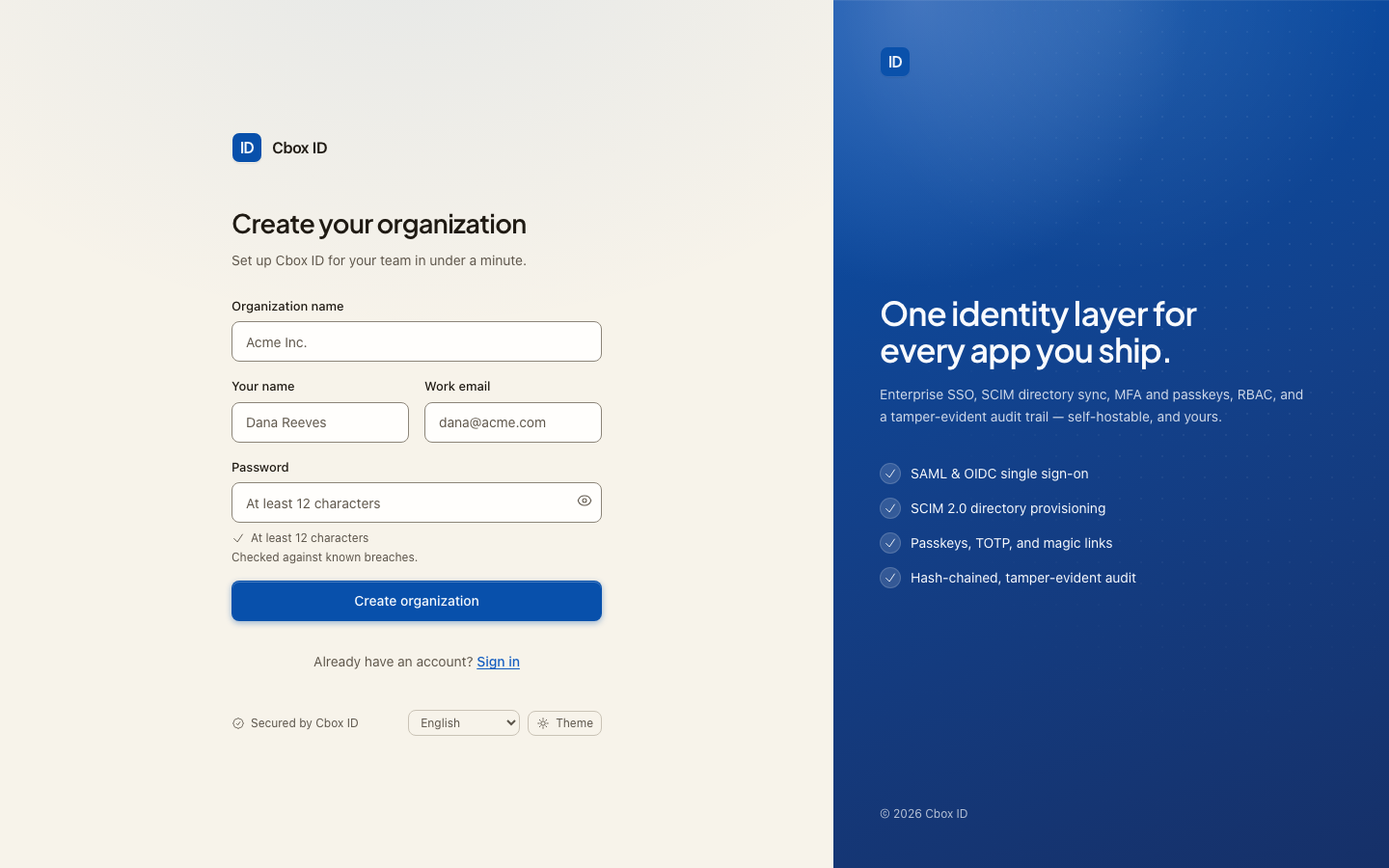
Create a new organization and its first owner. Risk scoring runs on submit
(monitor mode by default). Availability depends on CBOX_ID_SIGNUP_MODE — see
Security.
Whose name is on the door
On the platform root the sign-in pages carry Cbox ID's own panel beside the form. On a
customer's environment every door — sign-in, sign-up, password reset, magic link, an
invitation, the organization picker and the create-a-team step — carries that
environment's brand instead: the name and logo its Appearance page previews, over its
colours, with no Cbox ID panel. An organization's own door (/o/{slug}/login) carries the
organization's. The consoles on that host stay Cbox ID's.
Joining by invitation
The link in an invitation opens a page that says who is inviting whom, and every role accepting will grant, in the console's words: the built-in role (Member, Admin, …) and the roles in each app and custom roles the inviter ticked. A role that became staff-only or was retired while the invitation waited is left off, because accepting would withhold it.
The workspace console
What a workspace member sees at the platform root of a hosted deployment. The rail is the workspace and nothing else:
- Workspace: Projects, Team, Keys, Environment domains, Billing, Workspace settings.
- Team sign-in: Enterprise SSO, Authentication policy. How your own team signs in to Cbox, not how your product's users sign in.
- Logs: Audit log.
- My account: Security, Sessions & activity.
There is no Overview page and no setup guide here. The pages that administer end users (roles, apps, webhooks and the rest) are hidden from this rail and still reachable by URL, with a notice that says the page manages the workspace's own record in Cbox, not your product. Workspaces & organizations explains why they are hidden rather than redirected.
After signing in, a member with exactly one environment they may administer lands in that environment's console; everyone else lands on Projects, where each environment has Open console.
The organization console, area by area
The full organization console, as a single-tenant install (and an operator) sees it. On a customer's environment host it keeps the admin portal — Members, Roles, Enterprise SSO, Domains, Directory Sync, the Audit log, and App audit logs where the organization's plan includes them — beside the person's own Overview, Approvals and My account; every other page below is on the environment console instead.
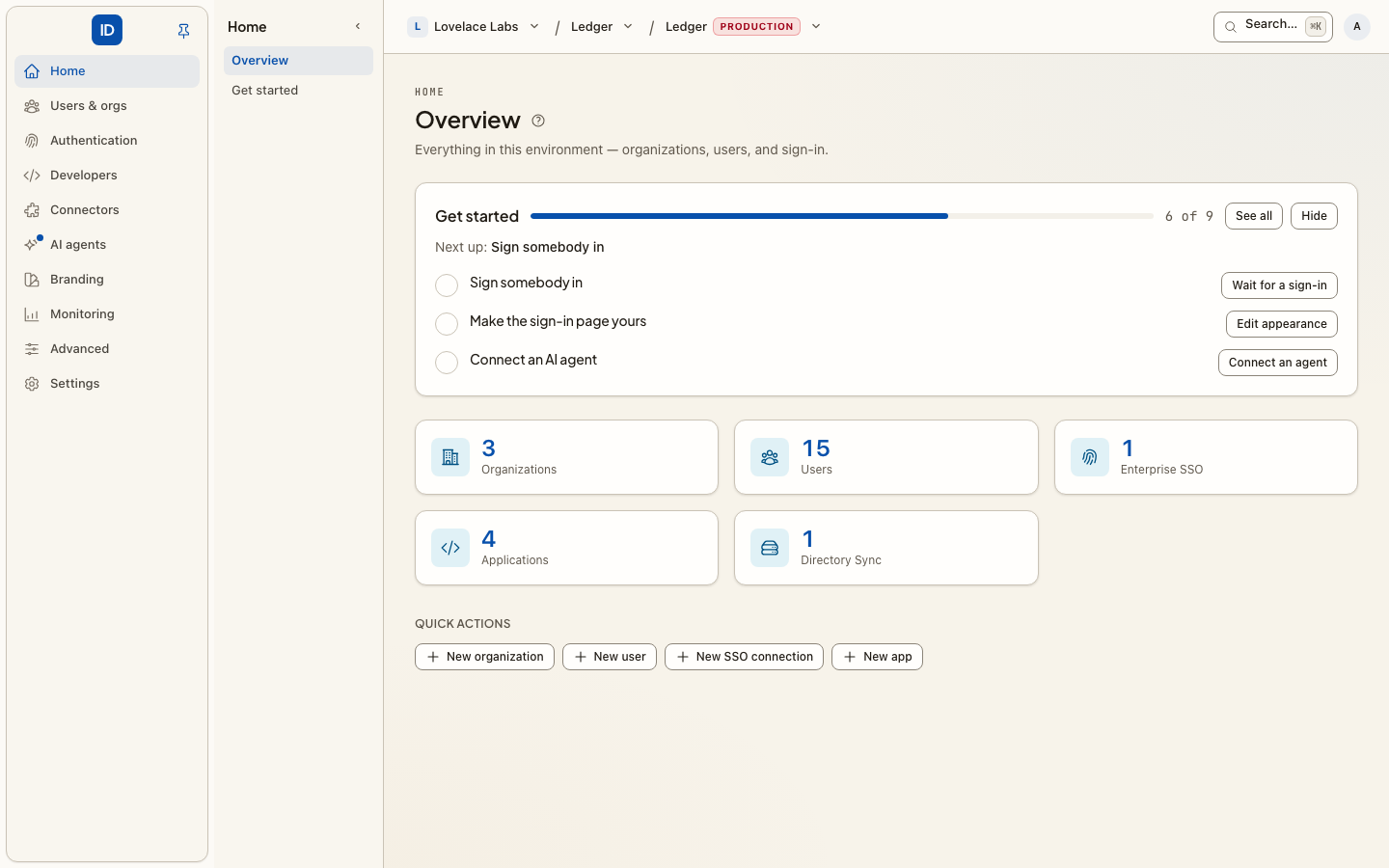
Overview
Overview · Usage · Approvals. The home page: member count, enterprise-SSO status, your role, a live recent activity feed from the tamper-evident audit log, and an onboarding checklist. Approvals is where you approve or deny a request from an app or agent to act as you.
Members & roles
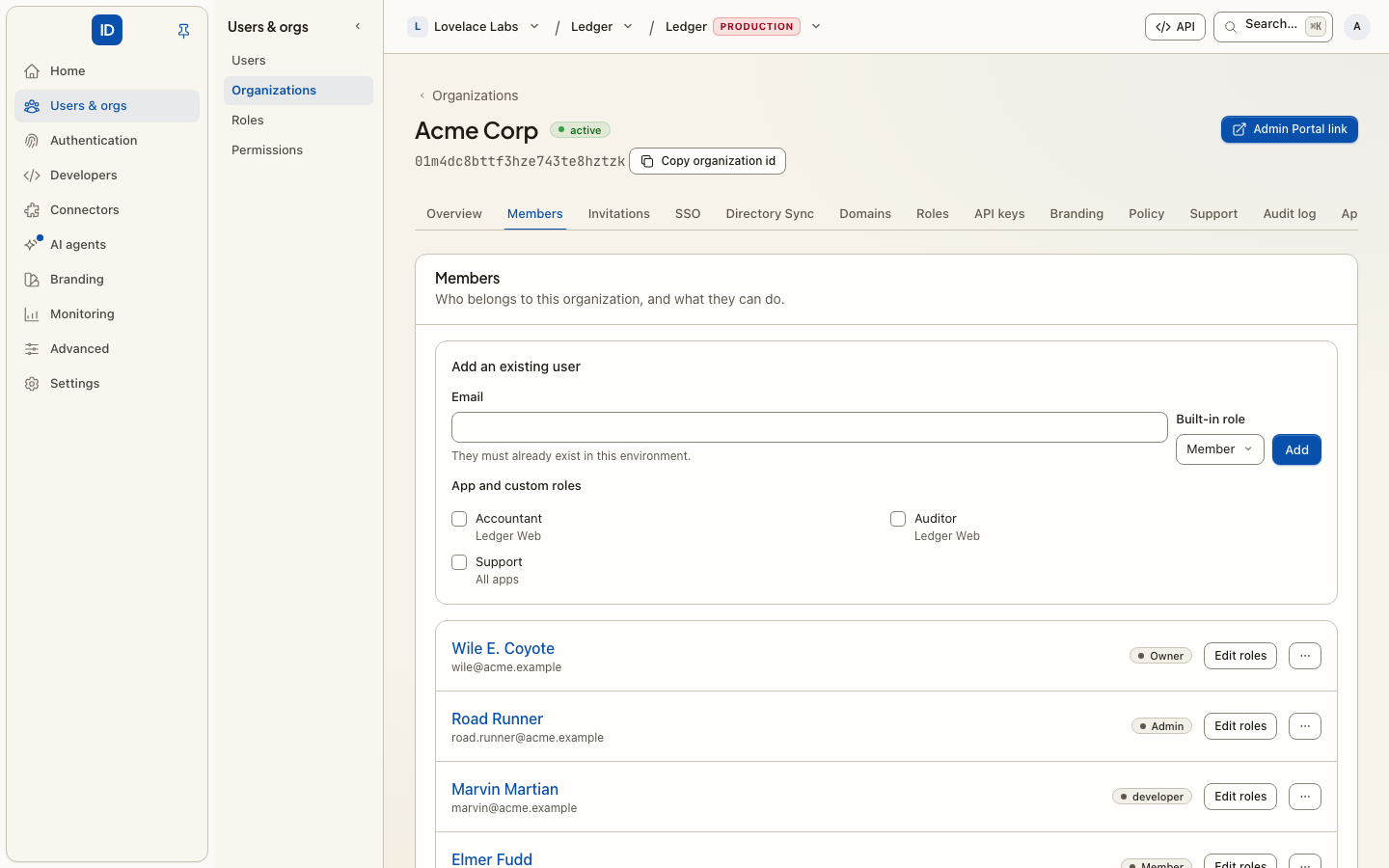
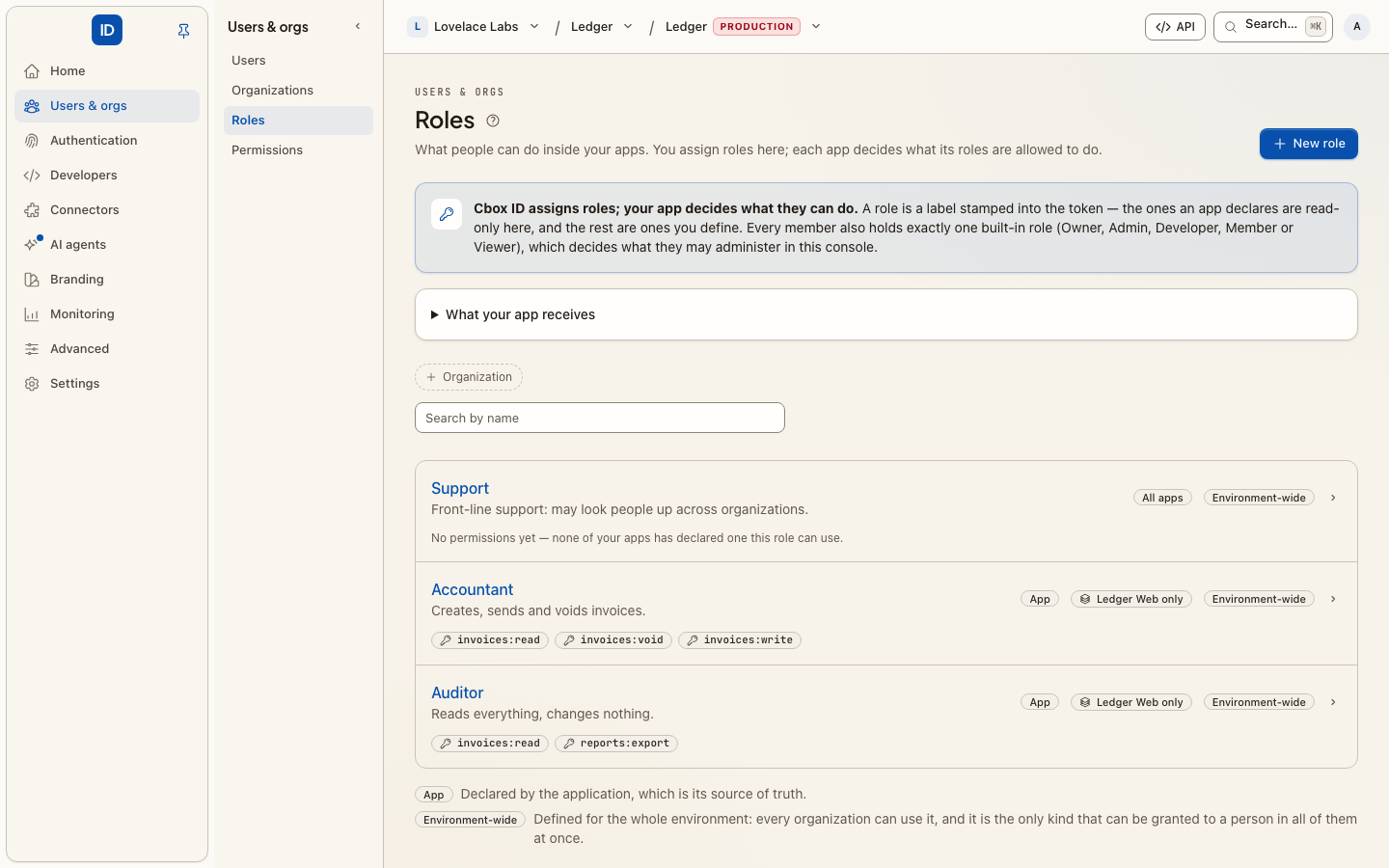
Members · Roles · Permissions · Member API keys. The people in this organization and what they may do: invite, change roles, remove, every change audited. Each person's Roles control holds exactly one built-in role (what they may administer in the console) and any number of roles your apps understand. The role and permission model itself is org-scoped and hierarchy-aware.
Sign-in
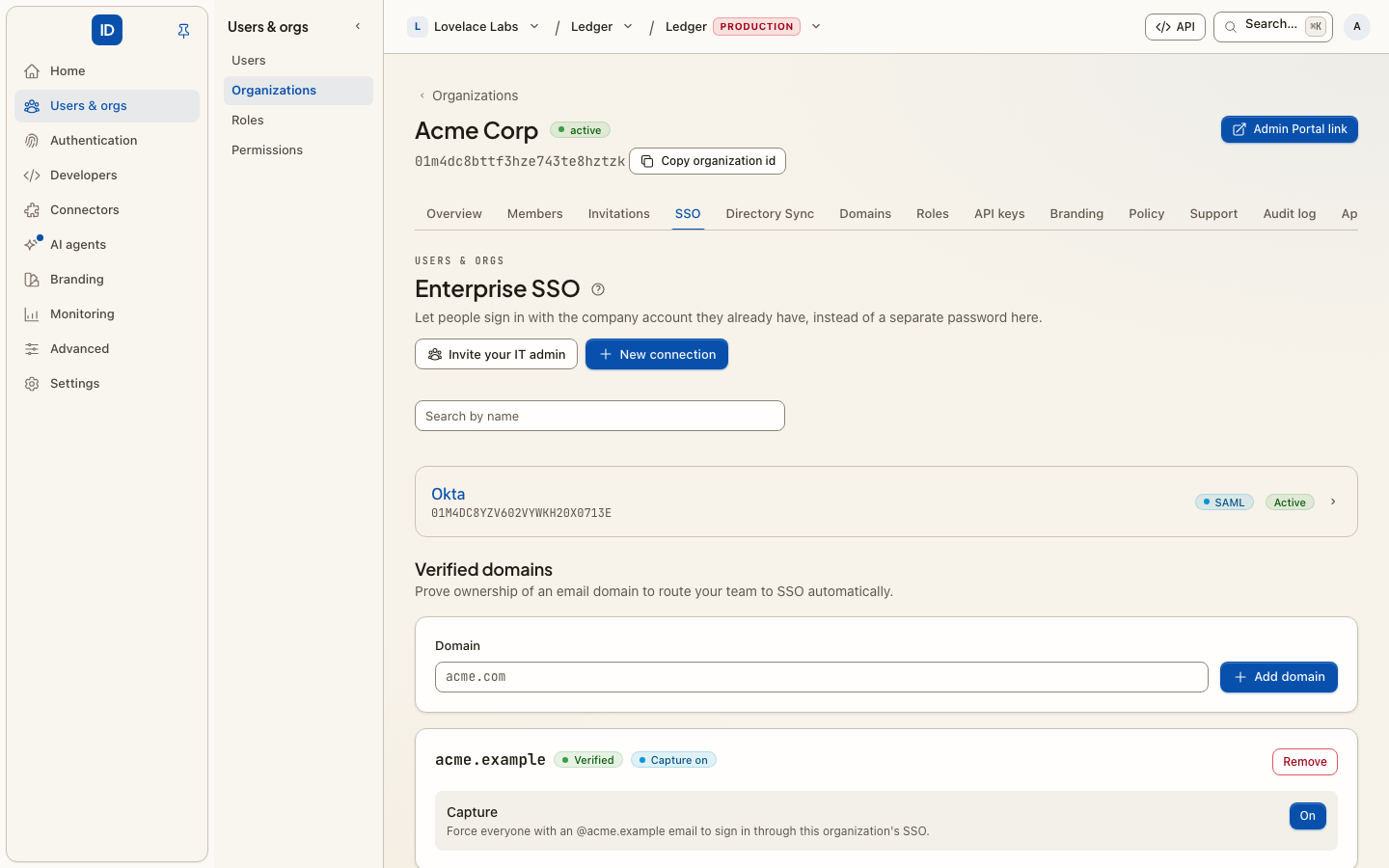
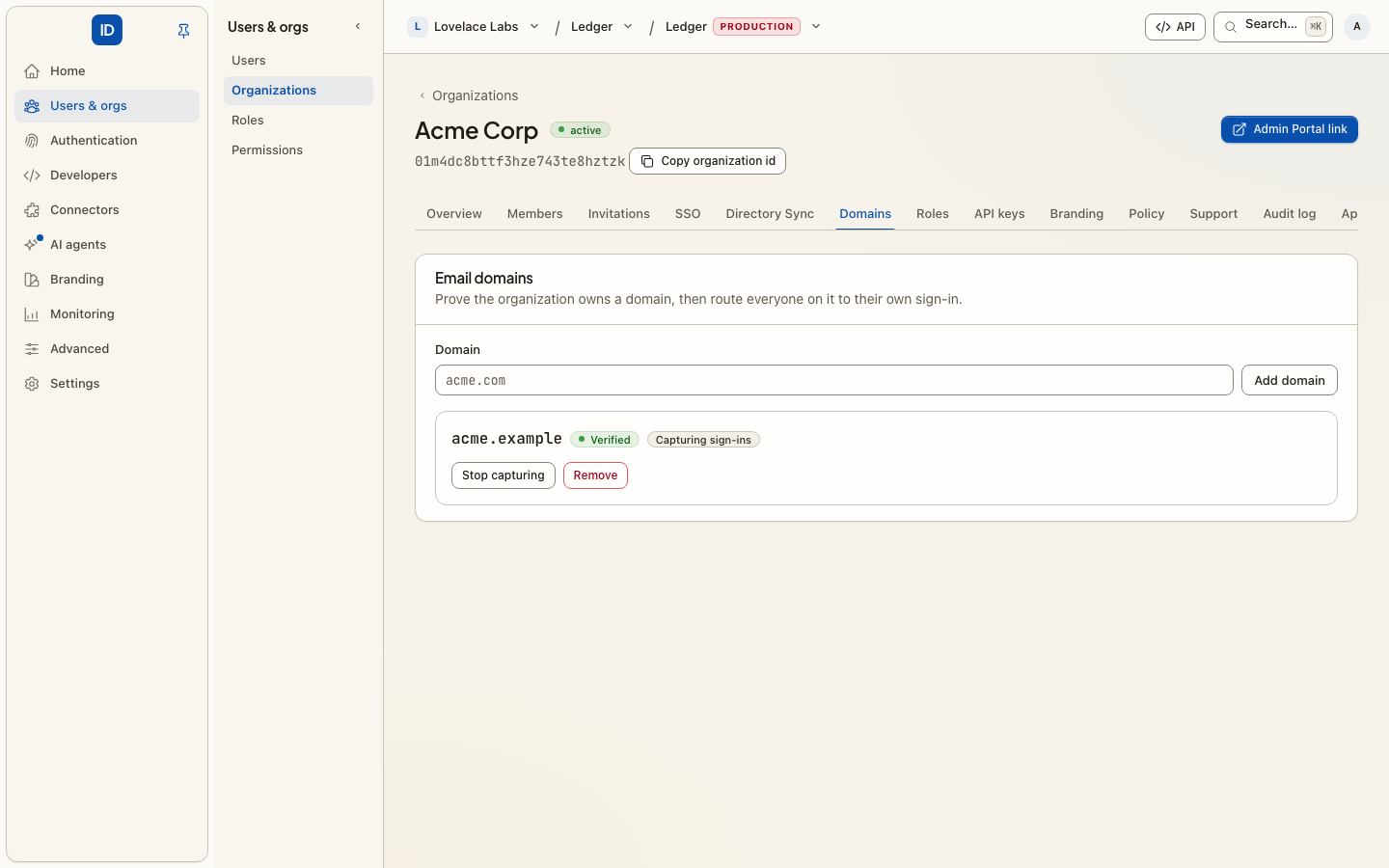
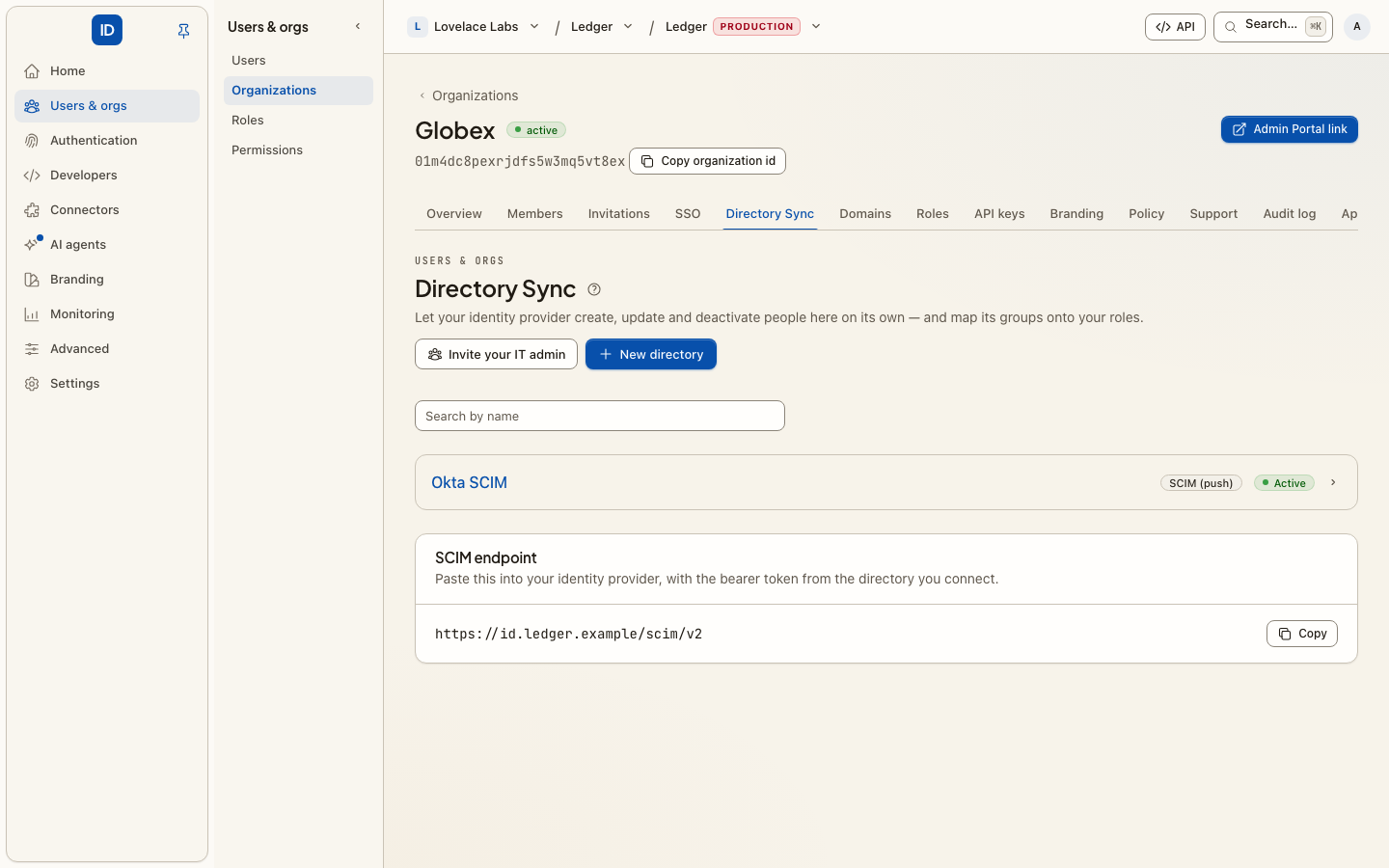
Enterprise SSO · Domains · Social login · Authentication policy · Directory Sync · Outbound provisioning. Everything about how people get in and how their accounts arrive. Enterprise SSO connects an organization's own IdP (SAML / OIDC), and Domains proves the email domains that route people to it; social login is picked from a catalogue rather than described from memory; Authentication policy is the password, MFA and session policy; Directory Sync is inbound SCIM provisioning (deprovision revokes sessions immediately) and Outbound provisioning pushes the same directory to downstream apps.
These are the names other identity platforms use for the same pages, so somebody who has used one finds them by the word they already know. In an environment console the same pages are tabs of each organization.
Access control
Access reviews · Role conflicts. Certification campaigns (a snapshot of who holds what, certified or revoked line by line, with the revokes applied on close) and separation-of-duties rules that refuse a combination of roles nobody should hold at once. No screenshot.
Developers
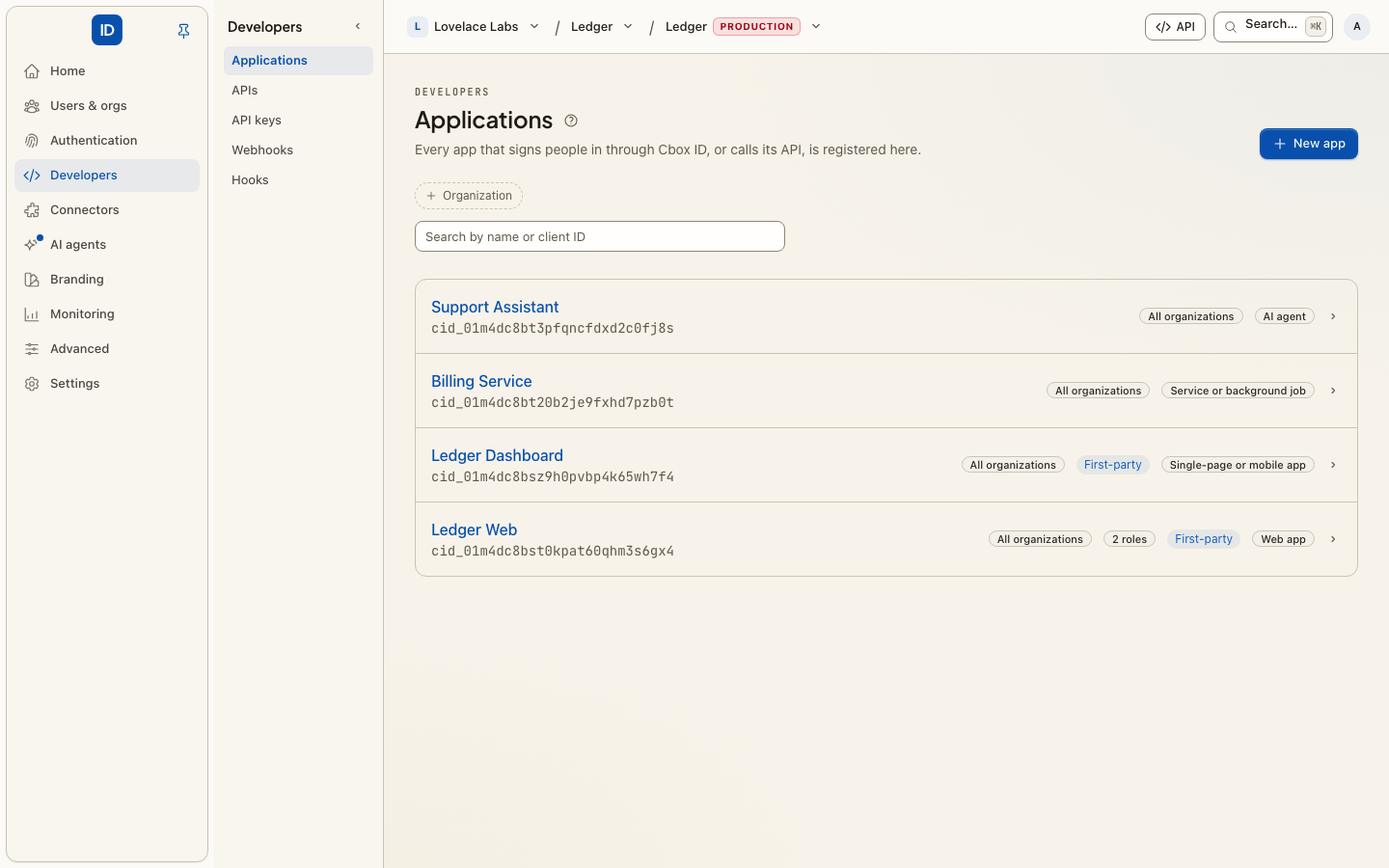
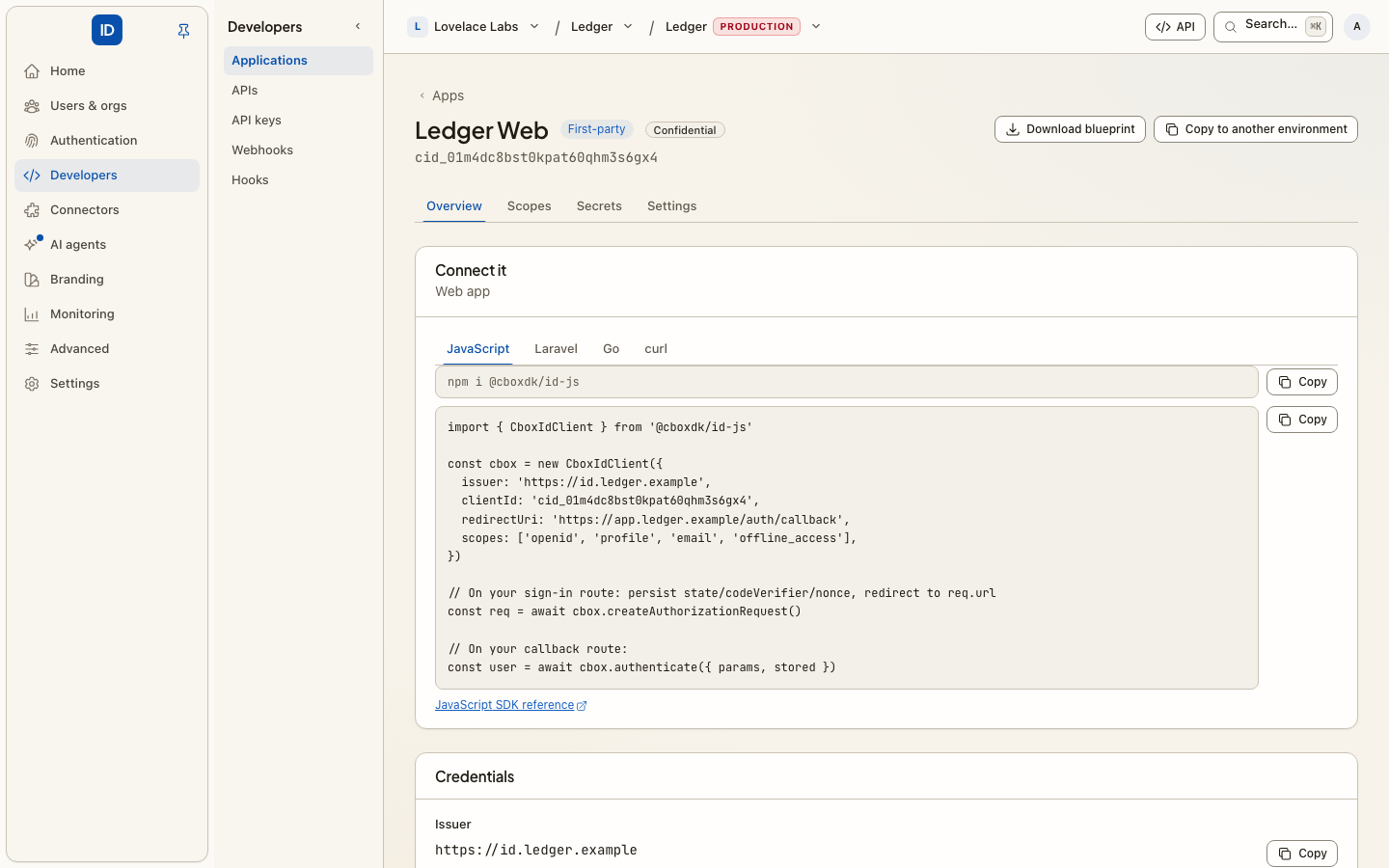
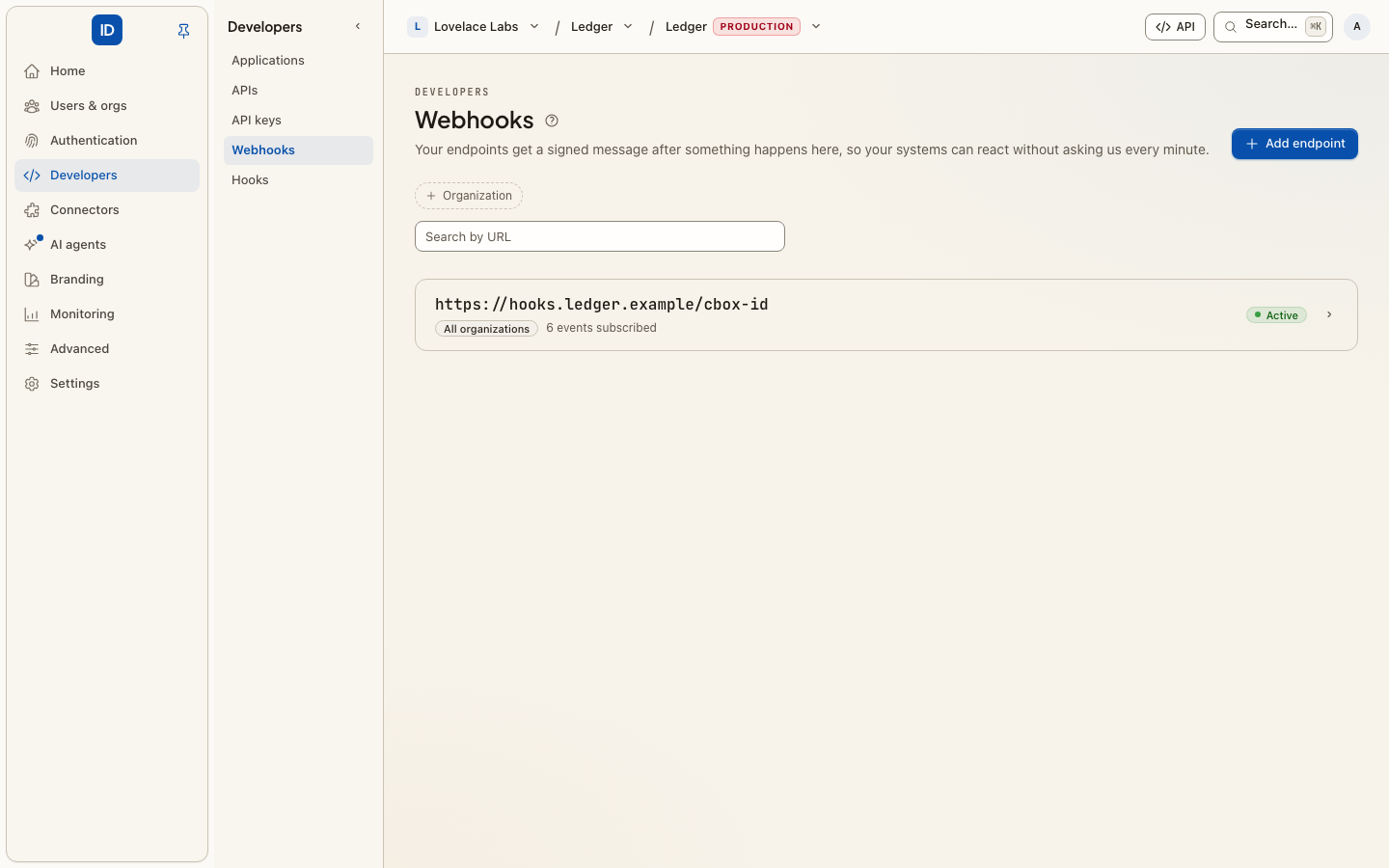
Applications · Webhooks · Hooks · Token vault. OAuth clients registered against this instance (including MCP clients self-registering through Dynamic Client Registration); HMAC-signed event delivery with retries and delivery history; synchronous hooks that run during a flow rather than after it; and the vault holding third-party tokens. Machine keys are on the API keys page of the workspace and environment consoles.
Connectors
Third-party integrations, contributed by the connectors module rather than written into the console. No screenshot.
Audit log
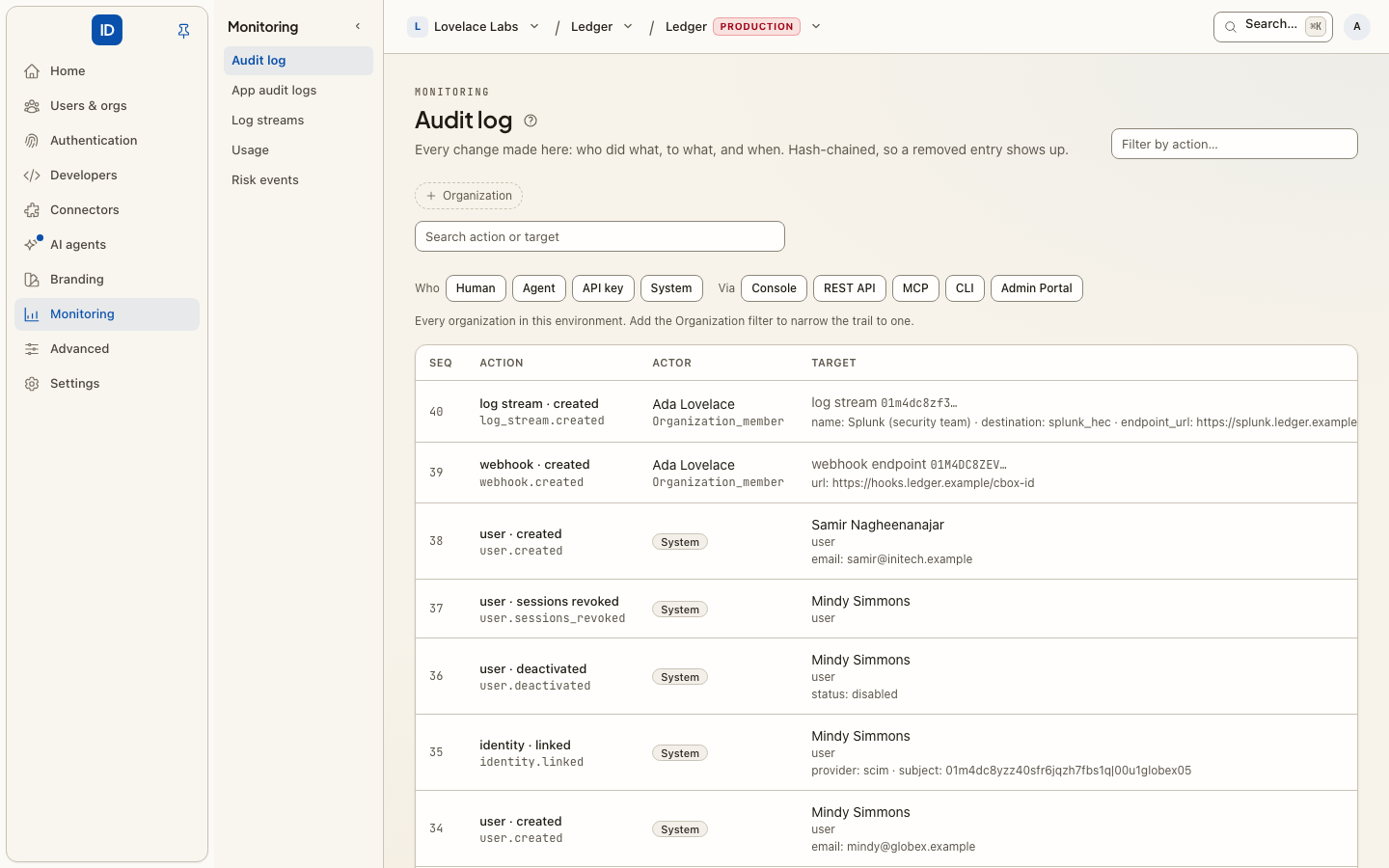
Audit log · App audit logs · Log streams. The append-only, hash-chained audit trail, filterable and exportable to your SIEM. The compliance and risk modules append their pages here rather than minting areas of their own.
Settings
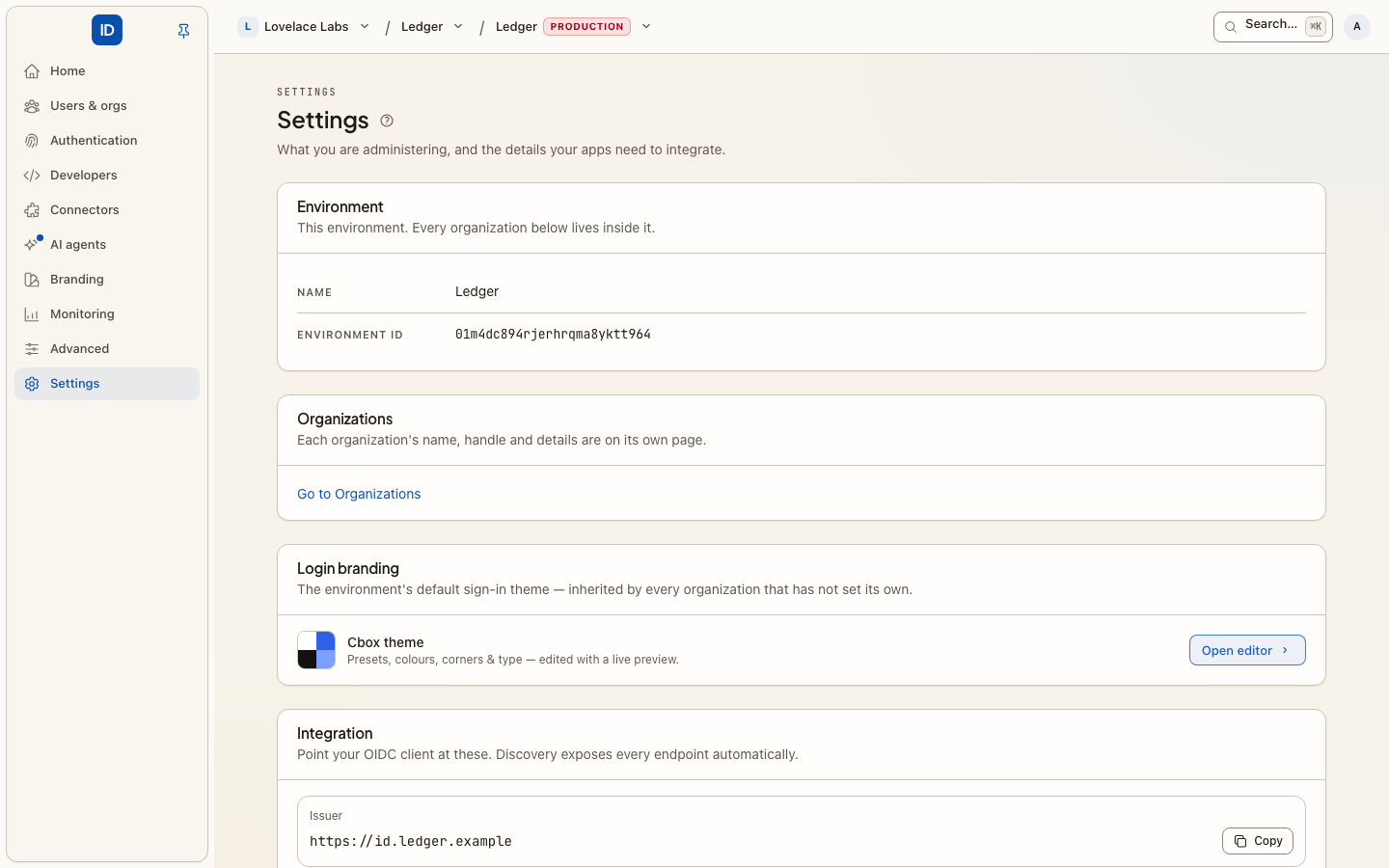
Settings · Appearance. Organization details, and the branding an organization's own sign-in page inherits.
My account
Security · Sessions & activity · My API keys. The signed-in person's own credentials: two-factor authentication, passkey enrolment, and sessions (auth methods, expiry, sign-out-everywhere). Shown to members and admins alike; every area above is role-gated, this one is not.
No screenshot of its own. The 2026-07-13 image above filed these settings under Settings, which is where they used to live.
The environment console
Every capability of the full organization console, plus the ones that only make sense for a whole environment, filed by task in the words the market uses:
- Home: Overview.
- Users & orgs: Users, Organizations (your customers), Roles, Permissions. A user's
page has Admin & support roles: roles granted across the whole environment. An organization
opens on its own page,
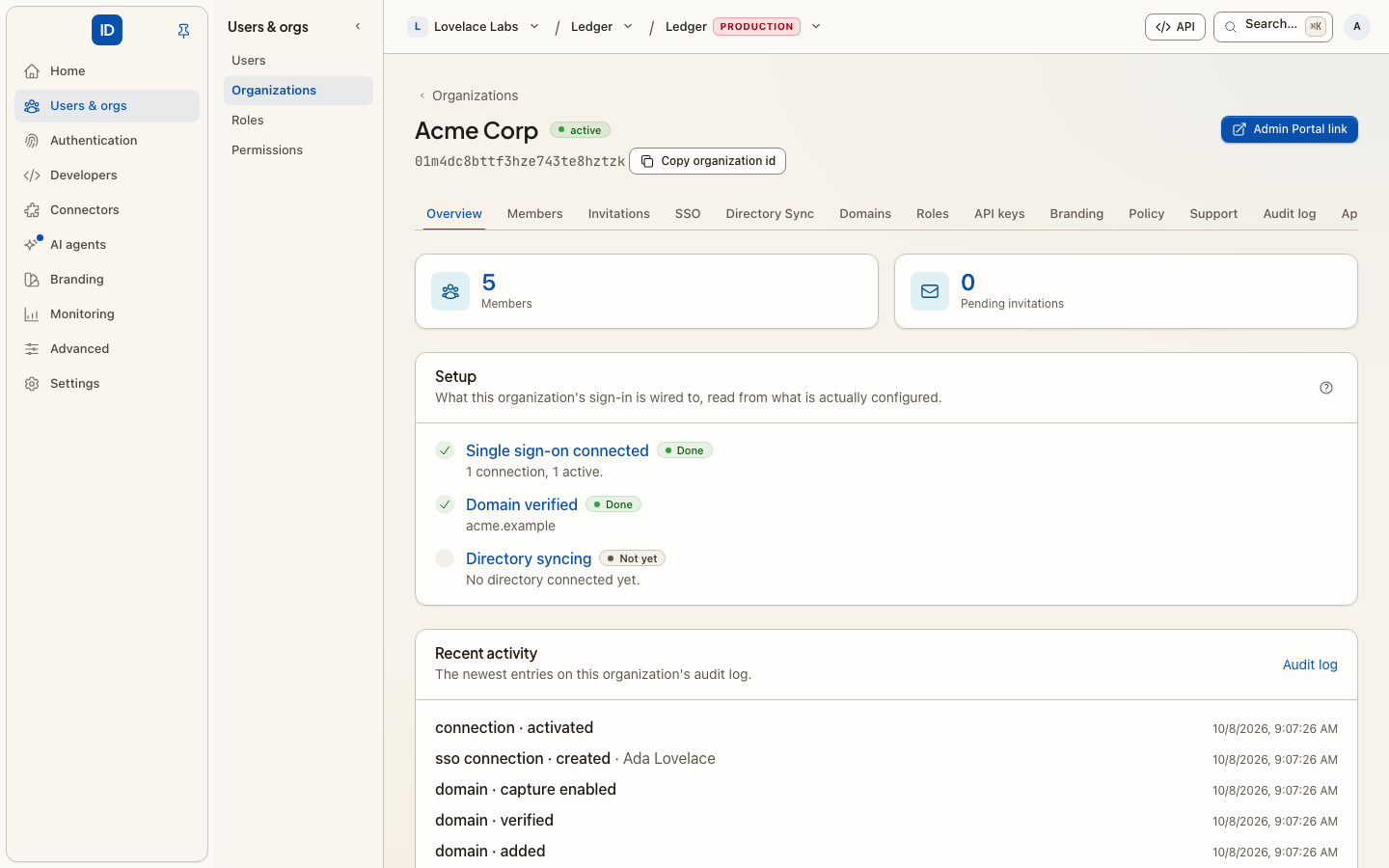
/admin/organizations/{id}, with a tab for each thing that is its: Overview (is SSO connected, a domain verified, a directory syncing — and its latest audit entries), Members, Invitations, SSO, Directory Sync, Domains, Roles, API keys, Branding, Policy, Support, Audit log and Settings, plus an Admin Portal link for its IT administrator. The environment-wide lists (Enterprise SSO, Roles, Audit log, …) show every organization's rows with an Organization column and an Organization filter chip; a form that creates something for one asks For which organization?. - Authentication: Authentication policy, Social login, Enterprise SSO, Directory Sync: every way people come in.
- Developers: Applications, APIs, API keys, Webhooks, Hooks.
- AI agents: Agents, Approvals (every pending approval request in the environment, so an administrator can deny one that looks like abuse), Connect.
- Branding: Appearance, and Branding when the white-label module is on.
- Monitoring: Audit log, Log streams, Usage, and the analytics, compliance and risk modules' pages.
- Advanced: Admins & support, Access reviews, Role conflicts, Token vault, Outbound provisioning, SAML apps, Legacy login: set up once and rarely revisited.
- Settings, and Connectors when that module is on.
It has no My account area. Your own password, passkeys and sessions belong to your workspace, so My account and Switch user in the account menu open on the workspace host.
The topbar reads <Workspace> ▾ / <Project> ▾ / <Environment> ▾ [badge] / <acting organization> ▾. The workspace crumb goes back to the workspace's Projects page; the
environment crumb opens the same page in another environment.
Chrome
Context switcher
A signed-in user who belongs to several workspaces or organizations switches from the first crumb of the topbar. The switch is server-verified against membership (you can only switch into one you actually belong to) and the role updates with it. The security model is described in Security. The project and environment crumbs list only the environments you may administer, and open them through the same signed handoff as Open console on Projects.
The environment console has a second, unrelated picker after it: which organization the console is acting on. It is a search rather than a list, because an environment with four thousand organizations is a real one.
Platform admin
For whoever runs the install, Platform admin in the account menu opens the platform pages. The rail there holds only Platform, Insights and Administration, and a strip across the top says Platform admin with Exit platform admin beside it. The topbar's old "target environment" menu is gone; re-point the platform pages from Platform › Environments.
Switch user
Switch user in the account menu moves between the people signed in on this device. It does not change workspace or organization; the context switcher does that.
Responsive (mobile & tablet)
Below the lg breakpoint the rail collapses into a navigation sheet (menu button in
the bottom bar) holding the full nav, the context switcher, the account links, theme
toggle and sign-out; content stacks to a single column and wide tables scroll within their card.
The sign-in split-screen collapses to a centered form. Verified at phone (390px) and
tablet (768px) widths.
Notes
- Inertia + React over server-rendered props, session-cookie auth, no tokens in the browser — chosen because this is the login surface. See the framework security model.
- Accessibility: the auth and console pages pass an automated axe-core WCAG 2.1 A/AA audit (guarded by a regression test); keyboard-navigable with a skip link, labelled landmarks and controls.
- To reproduce these locally:
php artisan migrate, seed the demo environment (php artisan db:seed --class=DemoEnvironmentSeeder), then sign in as[email protected]. The password is in the seeder.