Agents and MCP
Agents and MCP
Endpoints: https://<environment-host>/mcp for one environment, and
https://<platform-root>/mcp (https://cboxid.com/mcp on the hosted platform) for your
whole workspace.
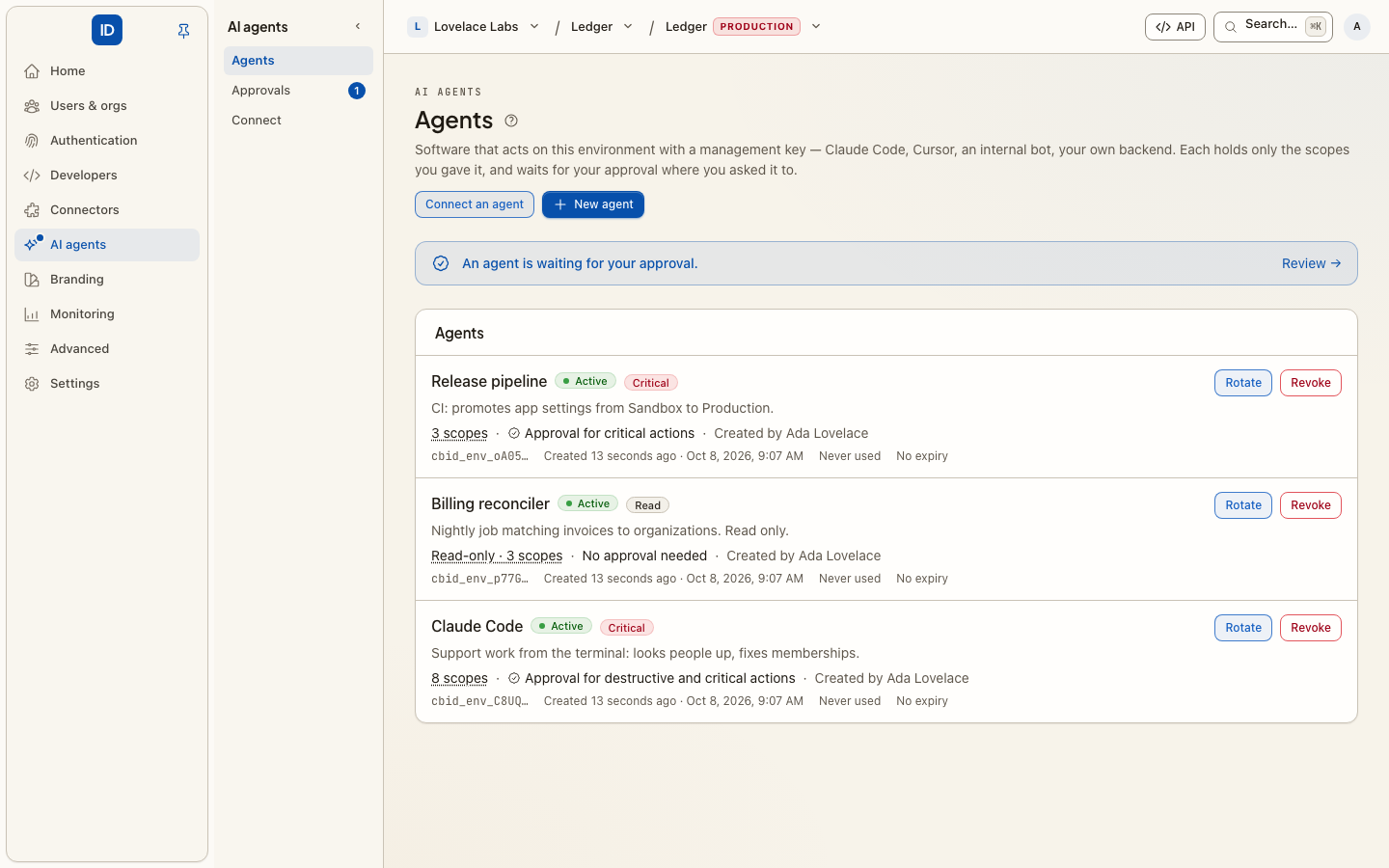
Every environment serves an MCP server on its own host, next to its management API. The platform root serves one too, for the people who run a workspace. An AI agent connected to it can run the same actions the API offers: register APIs, manage webhooks, read the audit log, and so on. It goes through the same checks, gets the same refusals and leaves the same audit log entries as the API and the console. There is no separate permission model to learn.
This page is for the developer wiring an agent up. What each action does is in the guide for its area, for example APIs.
Where to connect
| One environment | Your whole workspace | |
|---|---|---|
| Address | https://<environment-host>/mcp |
https://<platform-root>/mcp |
| Who signs in there | The environment's own people: an organization's administrators | The workspace's team, and the platform's operators |
| What it reaches | That environment, and your own account there | The workspace, every environment of it you administer, your own account and, for an operator, the deployment |
| Signing in | An MCP client signs you in by itself, the cbox CLI, or a key |
An MCP client signs you in by itself, the cbox CLI, or a workspace key |
| Keys it takes | cbid_env_… for that environment; a cbid_ws_… workspace key also works, with the workspace's tools only |
cbid_ws_… for the workspace |
Running a workspace, you are a person of the platform root: you reach an environment's console through the workspace console, and you have no account in the environment itself. So you sign in at the root, once, and name the environment each time you act in one. The rest of this page covers both; the root is described in One connection for your whole workspace.
The exact commands:
# Your whole workspace, signed in as yourself: the one most people want
claude mcp add --transport http cbox-id https://<platform-root>/mcp

# One environment, signing in as one of its own people
claude mcp add --transport http cbox-id https://<environment-host>/mcp

# One environment, with an environment key
claude mcp add --transport http cbox-id https://<environment-host>/mcp \
  --header "Authorization: Bearer cbid_env_…"

# Your whole workspace, signed in as yourself through the cbox CLI
cbox login --issuer https://<platform-root>

# Your whole workspace, as an agent holding a workspace key
claude mcp add --transport http cbox-workspace https://<platform-root>/mcp \
  --header "Authorization: Bearer cbid_ws_…"
Two ways in
| A management key | Signing in as yourself | |
|---|---|---|
| What the agent holds | cbid_env_…, pasted into its config |
An OAuth access token the client gets by sending you through sign-in |
| Who it acts as | The key | You, through that client |
| What it may do | The key's scopes | The scopes you granted and what you may do yourself here |
| Critical actions | Whatever the key's approval policy says | Always wait for your approval on your device |
| Best for | Automation that runs without a person: CI, a sync job | You, working with an agent at your desk |
Option 1: sign in with OAuth
Add the server by its URL alone:
claude mcp add --transport http cbox-id https://<environment-host>/mcp
Then run /mcp in Claude Code and choose Authenticate. Your browser opens this
environment's sign-in page. Sign in, check what the consent screen lists, and choose
Authorize. Claude Code stores the token and refreshes it; you do not handle it.
What happens underneath, for the curious:
- The first request has no token, so
/mcpanswers401and points at/.well-known/oauth-protected-resource/mcp. - The client reads that document and the issuer's metadata, then either registers itself
at
/oauth/registeror uses a client ID metadata document as itsclient_id. - It sends you to
/oauth/authorizewith PKCE andresource=https://<environment-host>/mcp. - It redeems the code for a token whose audience is
https://<environment-host>/mcp, good there and nowhere else.
The consent screen
The consent screen lists what the client will be able to do as you. Read it before you choose Authorize:
- "This app registered itself." Every MCP client that signs in this way registered itself. Nobody at your company reviewed it, so continue only if you started this sign-in yourself.
- "Described by agent.example." A client that uses a metadata document is shown with the host that published it. That host is the one thing about the client that has been checked; its name and logo are whatever that host wrote.
- Scopes marked Critical. Some actions mint or rotate credentials, change how people sign in, or put an endpoint in the sign-in path. A scope any of those actions needs is flagged. You can still grant it: every critical action waits for your approval anyway (see below).
The screen is shown every time for a self-registered client. It is never skipped.
What a signed-in agent may do
Two limits apply, and the agent gets only what both allow:
- The scopes you granted. A tool whose scope the token does not carry is not listed.
- What you may do yourself, here. The agent acts as you in the organization you
signed in to, with your role there:
- An organization owner or admin can run the actions their own console offers for that organization: its apps, webhooks, hooks, log streams, branding, authentication policy and audit log. Only that organization's, never another's, and never the environment's own (an environment-wide webhook, a first-party app).
- On a customer's environment of the hosted platform, a customer's console is a smaller admin portal, and a signed-in agent gets only what it offers.
- A member who is not an admin gets no environment tools. They still see
whoami,list_actionsandapproval_status, and their own account's tools if they granted theaccount:*scopes. - Actions that belong to the environment console (registering APIs, minting management keys, custom domains, frontend keys) are not available to a signed-in person at all. Use a management key for those.
If you leave the organization or your role changes, the agent's next call reflects it. If your account is deactivated, its token stops working.
whoami shows who the connection acts as, which organization and role it holds, and the
scopes the token carries. Ask the agent to call it when a tool you expected is missing.
Critical actions wait for you
Every critical action a signed-in agent tries is held. The agent gets back:
{
  "status": "approval_pending",
  "approval": { "id": "…", "binding_code": "K7Q2", "expires_at": "…" },
  "next": "Tell the person to approve the request showing code K7Q2 …"
}
You get a request on your devices that shows the same code. Approve it there. The agent
polls approval_status, then repeats the call with approval_id and runs it once. An
approval is for exactly that call: the same tool, the same arguments and the same client.
It cannot be spent on anything else, and it lapses after five minutes by default
(CBOX_ID_CIBA_TTL_SECONDS). The whole flow, for REST too, is in
step-up approvals.
Requiring a recent second factor (optional)
An operator can also demand that the sign-in behind the token was recent and strong before any critical action runs. This is RFC 9470 step-up, and it is off unless you set it:
| Variable | Value |
|---|---|
CBOX_ID_MCP_STEP_UP_ACR |
aal2 (or mfa): the person signed in with a second factor. aal1: any sign-in. The full class (urn:cbox-id:aal2) works too. |
CBOX_ID_MCP_STEP_UP_MAX_AGE |
Seconds since that sign-in, for example 900. |
Either can be set alone. With a requirement set, a critical action from a token that falls
short is answered 401:
WWW-Authenticate: Bearer resource_metadata="…/.well-known/oauth-protected-resource/mcp",
  error="insufficient_user_authentication", acr_values="urn:cbox-id:aal2", max_age="900"
On /mcp the 401 is the HTTP answer to the tools/call, not a tool error, so the client
can act on it. The client signs you in again with those acr_values and max_age. If you
have an authenticator, the sign-in page asks only for the second factor. Then the client
repeats the call. The token's acr and auth_time are what is checked. A token minted
before Cbox ID 1.23 carries neither, so it is refused until the client signs in again.
How it works with approvals. The two answer different questions, in this order:
- Step-up: is the token behind this call from a recent, strong sign-in? It is checked first, so you are never asked to approve a call the token would then be refused for.
- Approval: do you, on your own device, want this exact call to run? Every critical action from a signed-in agent still waits for it, step-up or not.
Approvals already put a person in front of every critical action, so step-up is off by default. Turn it on when a long-lived agent session should not be enough on its own: for example, when an approval on your phone should only count if the agent's session itself was signed in with a second factor in the last fifteen minutes. Management keys are never asked. A key is not a sign-in; its own approval policy governs it.
Option 2: a management key
A management key (cbid_env_…) for the environment works without anybody signing in.
Creating a key in the console
Create a management key on AI agents › Agents in the environment console (New agent), or on API keys in the workspace console (API keys). AI agents › Connect shows this environment's MCP address and a ready-to-paste setup for Claude Code, Claude Desktop, Cursor and VS Code, with a shortcut to create a key.
Give it only the scopes the agent needs. The scopes decide which tools the agent sees, so
an agent that only needs to read APIs should get apis:read and nothing else. The create
page starts from a preset (Read-only, Support agent, Full admin) and marks
each scope with the most harmful thing it allows. Set an expiry if the agent is for one
piece of work; the create page defaults to 90 days.
On AI agents › Agents (not on the workspace console's API keys page) you can also
choose which of the agent's actions wait for your approval: every critical action,
everything destructive and above, every change, and any actions you name. A held call
answers approval_pending over MCP (202 approval_required over REST) with a short
code; you approve on your phone or on AI agents › Approvals, and the agent repeats the
call once. See step-up approvals.
A key in an agent's config file is a long-lived secret on a laptop. Keep it out of repositories (see the environment variable example below), and revoke or rotate it on AI agents › Agents when the agent no longer needs it. Revoking a key also revokes every key it minted.
claude mcp add --transport http cbox-id https://<environment-host>/mcp \
  --header "Authorization: Bearer cbid_env_…"
To share the setup with your team without sharing the key, put it in the project's
.mcp.json and read the key from an environment variable:
{
  "mcpServers": {
    "cbox-id": {
      "type": "http",
      "url": "https://<environment-host>/mcp",
      "headers": { "Authorization": "Bearer ${CBOX_ID_MANAGEMENT_KEY}" }
    }
  }
}
A workspace key (cbid_ws_…) works the same way and sees the
workspace's tools: projects, environments, the team and keys. It is accepted on any host's
/mcp, but never acts inside an environment.
One connection for your whole workspace
The platform root's /mcp is for the people who run a workspace. Signed in there as
yourself, one connection reaches:
-
The workspace, as you, a member of its team: projects, environments, the team, keys and settings. Your role in the workspace bounds it exactly as it bounds you in the workspace console: a Developer manages environments but does not see the team, a Viewer reads but changes nothing.
-
Every environment of the workspace you administer, with the rights of that environment's console, the console the workspace console opens for you. Your role must manage environments (Owner, Admin or Developer) and your membership must reach that environment. Every environment tool takes a required
environmentargument, the environment's id or slug, and runs inside that environment only:{ "name": "apis_create", "arguments": { "environment": "acme-production", "identifier": "https://api.acme.example", "name": "Acme API" } }An environment you cannot reach, or another workspace's, is
not_found. -
Your own account at the root: your profile, sessions, applications, API keys, sign-in methods and devices (
account:*scopes,/api/v1/meon the root). -
The deployment, if you are a platform operator: the operator tools and
/api/v1/platform(operator:*scopes).
The same two limits apply as everywhere: the token's scopes and what you may do
yourself. A scope never gives you more than your role does. Every critical action waits for
your approval on your device, and approval_status at the root finds every approval you
raised, in whichever environment.
whoami at the root reports who you are, your workspace and your role there, whether you
are an operator, the scopes the token carries and the environments you can act in, which
are the values the environment argument takes.
Signing in at the root
Add the root's server to Claude Code by its URL alone, the same way as an environment's:
claude mcp add --transport http cbox-id https://<platform-root>/mcp
Run /mcp in Claude Code and choose Authenticate. Your browser opens the root's
sign-in page, the one the workspace console uses. Sign in, check what the consent screen
lists, and choose Authorize. Any MCP client that signs people in with OAuth works the
same way with that URL. Underneath it is the flow in
Option 1, with three differences at the root:
- Only someone on a workspace's team, or an operator, can finish signing in. Anyone else is told so on the sign-in page.
- The token is for the root's
/mcpand nothing else. A client that asks for anotherresource, or foropenid, is refused. There is no ID token. - The consent is recorded in your workspace's audit log as
mcp.client_authorized.
Or sign the cbox CLI in at the root:
cbox login --issuer https://<platform-root>
The CLI reads /.well-known/cbox-cli on the root, runs the device flow and asks for the
root's /mcp as its resource. The token it holds works at the root's /mcp, on the
workspace API, on /api/v1/me and, for an operator, on /api/v1/platform.
On the REST environment API, call the usual paths on the root's host and name the environment in a header:
curl https://<platform-root>/api/v1/apis \
  -H "Authorization: Bearer <token>" \
  -H "Cbox-Environment: acme-production"
Without the header the answer is 400 environment_required. Everything is recorded in that
environment's own audit log, as you (actor_type: organization_member), with the
client you used.
The root is not an identity provider for other apps. It signs in the platform's own
clients (the cbox CLI) and MCP clients for its own /mcp, and nothing else: no OpenID
Connect discovery, no UserInfo, no client an administrator created there. An operator can
turn MCP sign-in at the root off with CBOX_ID_ROOT_MCP_OAUTH=false; see
environment variables.
To give an agent the workspace without a person behind it, use a workspace key:
claude mcp add --transport http cbox-workspace https://<platform-root>/mcp \
  --header "Authorization: Bearer cbid_ws_…"
A workspace key acts as the key, bounded by its role and scopes, and reaches the workspace's own tools only: projects, environments, the team and keys. It does not act inside an environment; mint that environment a key for that.
An operator provisions the root's CLI client the same way as an environment's,
php artisan cbox-id:cli:client --environment=<root>. A new install does it for you.
Connect Cursor or another client
Any client that speaks MCP's Streamable HTTP transport works. A client that supports MCP
authorization needs only the URL (https://<environment-host>/mcp) and signs you in as
above. Otherwise give it the header Authorization: Bearer cbid_env_…. In Cursor that is
.cursor/mcp.json:
{
  "mcpServers": {
    "cbox-id": {
      "url": "https://<environment-host>/mcp",
      "headers": { "Authorization": "Bearer cbid_env_…" }
    }
  }
}
The server is stateless: no session, no cookies, and no server-to-client stream. Each
request is a POST, answered on its own; GET and DELETE on /mcp answer 405.
The cbox CLI
cbox login signs you in with the device flow against the issuer you point it at: an
environment's own, as one of its people, or the platform root's, as one of a workspace's
team (see above). Against an environment's issuer: It
reads /.well-known/cbox-cli, which names the CLI's client, the scopes to ask for (the
sign-in ones and every management scope) and the resource to name: the same /mcp
audience. You approve the code on the device page, which lists what the CLI may do as you
and flags the critical scopes. The token it gets works at /mcp, on the REST
environment API and on /api/v1/me for your own account there, as you, with the same
two limits and the same approvals. /.well-known/cbox-cli also names the device
authorization and token endpoints, so the CLI never needs a discovery document.
An operator provisions the CLI client once per environment with
php artisan cbox-id:cli:client. Run it again after an upgrade: it adds any new management
scopes to the existing client without replacing it.
The REST API answers a held critical call with 202 approval_required and a poll_url.
Poll it, then repeat the call with the header Cbox-Approval: <id>.
What tools you get
| Tool | What it is |
|---|---|
whoami |
Who this connection acts as: a key (its id, name and scopes) or a person (who, which client, which organization and role, the token's scopes), plus the environment and issuer. At the root: your workspace and role, whether you are an operator, and the environments you can act in. Check this first when a tool you expected is missing. |
list_actions |
A short list of every action this connection may run: tool name, summary, scope and danger. Cheaper to read than the full tool list. |
approval_status |
Where a held call's approval stands. |
| One tool per action | Named after the action, with dots and hyphens as underscores: apis.create is apis_create. The tool's title is the dotted action name. |
Each tool's input is the same as the matching API endpoint's, with values from the URL as
ordinary arguments. PUT /apis/{id}/scopes/{key} is apis_scopes_define with id and
key. Every tool also takes an optional approval_id, and every write tool an optional
idempotency_key.
The server offers tools only: no MCP resources and no prompts. whoami reports the
connection's kind: environment_key, workspace_key, delegated (a person on an
environment's host) or person (a person at the platform root).
Scopes decide what is listed
A tool appears only when the credential may run it. A key with apis:read sees
apis_list and apis_get, and not apis_create. Hiding is a convenience, not the
protection: every call is checked again before it runs, exactly as the API checks it.
Danger, and asking before acting
Every action states how much harm it can do, and the tool says it twice: in its description, and in the MCP annotations clients use to decide when to ask you first.
| Danger | Annotations | Example |
|---|---|---|
| read | read-only | apis_list |
| write | not read-only, not destructive | apis_create |
| destructive | destructive | apis_delete |
| critical | destructive | keys_create, keys_rotate, apps_secrets_rotate |
A tool is also marked idempotent when calling it twice has the same effect as once
(the API verb is GET, PUT or DELETE). Every tool is marked closed-world
(openWorldHint: false).
Retries: idempotency_key
Every write tool takes an optional idempotency_key argument. It does what the
Idempotency-Key header does on the API:
- The first call runs, and its answer is kept for 24 hours.
- A retry with the same key and the same arguments gets that answer back, marked
"replayed": true, and nothing runs again. - The same key with different arguments is refused (
idempotency_key_reused). - A refusal is not kept, so a corrected retry runs.
Keys are per credential and shared with the API. For a signed-in person that is the person and the client together, so two agents you signed in never share one.
Agents retry after timeouts, so tell yours to send a fresh idempotency_key with every
change it means to make once. The server's instructions already ask it to.
What comes back
A successful call returns the API's response body as structured content, {data, meta?}
(meta carries the cursor on lists), after one line of plain text.
A call the action refuses is a tool error, not a protocol error, so the agent can read it and correct itself:
{ "error": "organization_not_found", "message": "No organization with that organization_id exists in this environment.", "field": "organization_id" }
The codes are the API's: validation_failed (with errors, by field), not_found,
forbidden, invalid_api and the rest.
What is recorded
What an agent does is recorded on the audit log:
- with a key, as the key's act, the same entries the API writes;
- signed in, as your act, with the client you used recorded on every entry
(
oauth_client_id), so "you did it" and "your agent did it" can be told apart. Signed in at the root, an environment action is recorded in that environment's log as you, a member of the workspace, and a workspace action in the workspace's log.
Every entry also records the door it came through (via: mcp, rest, cli, console
or portal), so the Audit log can be filtered to Via: MCP. An
entry for a call that waited for approval also names the approval and who gave it.
Limits
- Rate limit: 240 requests a minute per credential, in a bucket of its own so an agent
does not use up the allowance of a sync job on the same key. Operators change it with
CBOX_ID_API_RATE_LIMIT_MCP. A per-address backstop allows ten times that (CBOX_ID_API_RATE_LIMIT_IP_MULTIPLIER). - Tokens from signing in last 15 minutes and are refreshed for you; the refresh token
lasts 30 days, is used once and is replaced each time. Refreshing needs
offline_access. - Tool search (operators):
CBOX_ID_MCP_TOOL_SEARCH=truereplaces the per-action tools with laravel/mcp'ssearch_toolsandexecute_tools, for clients that load every tool into the context. It is off by default because behindexecute_toolsa client can no longer tell a destructive call from a read, and so cannot ask you first. - Self-registered clients (operators): registration is open in the
mcpprofile by default (CBOX_ID_DCR_MODE), capped at 20 an hour per address (CBOX_ID_DCR_MAX_PER_IP_PER_HOUR), and a client nobody has used for 30 days is removed (CBOX_ID_PRUNE_UNUSED_DYNAMIC_CLIENTS).CBOX_ID_MCP_DYNAMIC_CLIENTS=falsecloses/mcpto them. See environment variables.
For client authors
Discovery
A request without a valid credential is answered 401 with:
WWW-Authenticate: Bearer resource_metadata="https://<environment-host>/.well-known/oauth-protected-resource/mcp"
plus error="invalid_token" when a token was presented. That document
(RFC 9728) names the resource
(https://<environment-host>/mcp), the environment's issuer as its authorization server,
and the scopes the tools use.
At the platform root the issuer is the root's, and its
/.well-known/oauth-authorization-server is written for MCP clients only: the code flow
with S256 PKCE, public clients (none), registration, client ID metadata documents, the
device grant for the cbox CLI, and the scopes of the root's /mcp plus offline_access.
There is no /.well-known/openid-configuration there.
A critical tools/call can also be answered 401 with
error="insufficient_user_authentication" and the acr_values / max_age the deployment
requires (requiring a recent second factor).
Send the person through /oauth/authorize again with those parameters and retry.
A token is accepted when it is live, its aud names https://<environment-host>/mcp, its
iss is this environment's issuer, it stands for a person (not a client-credentials or a
support-session token) and, when it is DPoP-bound, the request carries a valid proof
(Authorization: DPoP <token>). A token for any other audience, including the issuer's
own, is refused.
Registration
POST /oauth/register (RFC 7591) in the mcp
profile takes a public client only:
{
  "client_name": "My agent",
  "redirect_uris": ["http://127.0.0.1:33418/callback"],
  "grant_types": ["authorization_code", "refresh_token"],
  "token_endpoint_auth_method": "none"
}
Redirect URIs must be https or loopback http. A client secret, another grant or a
back-channel logout URI is refused with invalid_client_metadata. Leave scope out to be
registered for every /mcp scope, plus offline_access when you registered the
refresh_token grant.
At the platform root registration is offered only while the deployment's mode is mcp
(otherwise it answers 403 access_denied and the metadata lists no
registration_endpoint), and
the response carries no registration_access_token or registration_client_uri: the root
serves no RFC 7592 management. Protocol scopes
other than offline_access are dropped from what you are registered for.
Client ID metadata documents
When the issuer's metadata says client_id_metadata_document_supported: true, use the
https URL of your client's metadata document as client_id and skip registration. The
document's redirect_uris are matched exactly, port included.
Related
- Step-up approvals — a key's approval policy, and handling a held call.
- Approvals — what the person approving sees.
- Trusted devices — the phone the approvals go to.
- API keys — creating, expiring and revoking the keys agents use.
- Keys and tokens — which credential acts as whom.
- Actions — the one catalogue behind REST, MCP and the CLI.
- Planes and hosts — why there are two
/mcpaddresses. - Audit log — where everything an agent does is recorded.