API keys
API keys
Console page: Workspace › API keys, and Developers › API keys in an environment console
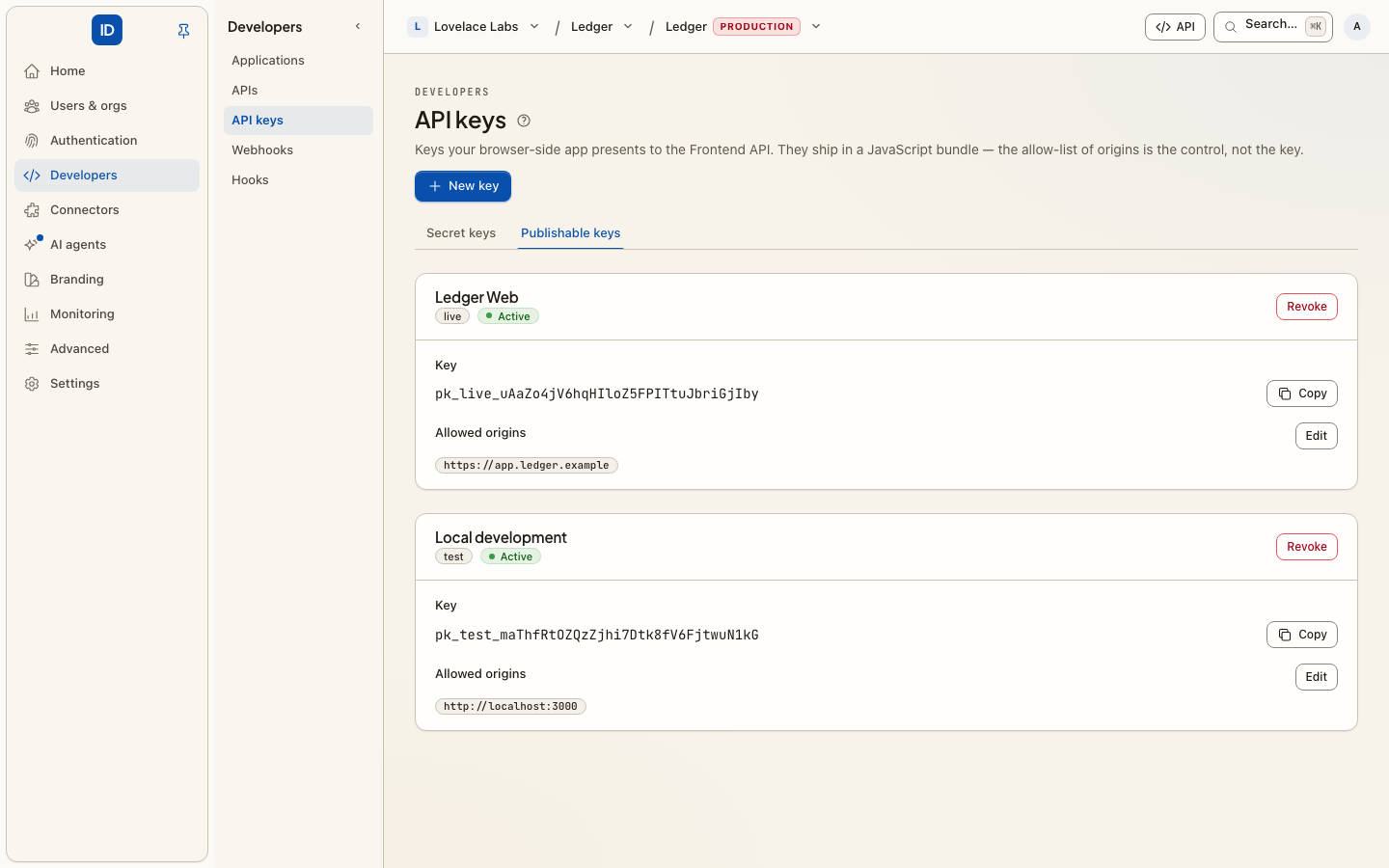
Each console has one API keys page. The kind of key is a tab, and the tab is in the URL, so a link to one tab opens that tab.
| Tab | Console | URL | What it calls |
|---|---|---|---|
| Secret keys | Workspace | /keys?environment=… |
One environment's management API |
| Workspace keys | Workspace | /keys/workspace |
The workspace API |
| Secret keys | Environment | /admin/agents (AI agents › Agents) |
This environment's management API |
| Publishable keys | Environment | /admin/keys/frontend |
The Frontend API, from a browser |
In an environment console the Secret keys tab leads to AI agents › Agents, which lists each secret key as the agent (or backend) that holds it, so the same keys are never listed twice. Member API keys, which the people in an organization hold for its apps, have a page of their own: Members & roles › Member API keys.
App credentials (a client ID and secret) are not here. They belong to the app and live on Apps. Keys people create for an app's own API are not here either: see API keys.
Secret keys
A secret key is a management key (cbid_env_…) lets your own backend run the tenancy of one
environment: organizations and their owners, users, members, invitations, roles, apps,
APIs, member API keys and support sessions. It carries explicit scopes rather
than a role, and read never implies write. The form opens with read-only scopes ticked;
you opt in to each write scope yourself, and the form marks which scopes write. The form
offers a scope only when an endpoint uses it. What each endpoint does is in
Run your tenancy from your backend.
You can create one from either console:
- In the workspace console, pick the environment first. The choice goes into the URL
(
/keys?environment=…), so the link you copy opens the same environment's keys. The list only offers environments you can reach. - In an environment console, the key is always for the environment you are in, so there is no picker. Keys created here are recorded on your workspace's activity log, the same place the workspace console records them, because creating a key is the workspace's act and not the act of whichever organization the console happens to be acting on.
Only a built-in role that may administer environments (Owner, Admin or Developer) sees this tab.
Workspace keys
A workspace key calls the workspace API: list projects and environments, create environments, list and invite your team. It carries a built-in role (Admin, Developer, Member or Viewer) and can do only what that role may do, without a session, a second factor or a person behind it. Owner is not offered.
Only Owners and Admins see this tab. A Developer opening the Keys page sees Management keys alone.
Publishable keys
A publishable key is a frontend key for the Frontend API. It goes into a JavaScript bundle and is public on purpose, so the page shows it in full every time. What stops anybody else using it is its list of allowed origins: the key only works from the origins you list. You can edit the list at any time, and the change applies on the next request, so adding a staging domain does not mean minting a second key.
Each key is test or live. Publishable keys belong to the environment, so they are only on the environment console.
Creating a key
- Open the tab for the kind you need and give the key a name you will recognise in a list, such as the service or job that uses it.
- Choose the scopes (management key) or the built-in role (workspace key). Give it the least it needs.
- Choose how long it lives: 30 days, 90 days, 1 year, a custom date, or never. A custom date means the key still works on that date and stops at the end of it, UTC.
- Confirm it is you when asked. Creating a management or workspace key needs a fresh confirmation (a step-up), and the prompt says why.
- Copy the key now. A management or workspace key is shown once. Cbox ID stores only a hash, so nobody can show it to you again; if you lose it, create a new one and revoke the old one.
Publishable keys skip steps 3 to 5: they have no expiry and no step-up, and they stay visible.
Revoking a key
Revoke stops the key immediately, for everything using it. Revoking a management or workspace key asks for the same step-up as creating one, because stopping a key is as disruptive as minting one is dangerous.
The management and workspace key lists keep revoked and expired keys, each marked with its status, so the list doubles as the record of what existed. Each row shows the key's prefix, when it was created, when it was last used and when it expires. Revoke is only offered on an active key.
Creating and revoking management and workspace keys is recorded on the audit log.
Things worth knowing
- One key per job. A key shared by three services has to be revoked for all three when one of them leaks it.
- Set an expiry. A bounded lifetime is the cheapest protection against a key that leaked into a CI log two years ago. Keys created before the form asked never expire; nothing changes them for you, because an expiry nobody chose stops automation on a date nobody expected.
- A workspace key is as powerful as its role. An Admin key can invite people to your team. Prefer Developer or Viewer unless the job needs more.
Related
- Run your tenancy from your backend: what a management key can do, endpoint by endpoint.
- Apps: client IDs and secrets for apps that sign people in.
- Workspaces & organizations: which console you are in.
- Integrate your app: where a frontend key goes in your code.